Wednesday, March 14, 2018

Calculate Your Age and Day of Birth in Excel

Sometimes, a person needs the exact age calculation from his / her date of birth to a specific date, for example when he / she applies for a job. The employer demands the required age must not be more that 21 years on the given last date for submitting job application.
Calculate your age from your date of birth in MS Excel with Datedif() function

            In such situation,  we need to calculate exact date in years, months and days. Because the difference of  a single day will also be considered.
           Today, we will learn, how to prepare Microsoft Excel Worksheet for calculating Age in Years, Months and Days with the help of formulas and functions provided in MS Excel. We will also find and display the actual day of birth from the given date of birth for a person.
Age Calculator Designed in Microsoft Excel Using DATEDIF Function

Preparation Of MS Excel Worksheet To Tell your Age from Date of Birth

  1. First of all, start Microsoft Excel. Open a new blank workbook in MS Excel.
  2. Type the data in MS EXCEL worksheet as shown in above figure.
  3. You can perform any formatting on this worksheet with the help of different tools provided by Microsoft Excel like Font, Font Size, Font Color and Borders options.
  4. Consider the following worksheet prepared to calculate Age from Date of Birth up to a given date. 

 Inserting Formula Using DateDif( ) Built-in Excel Function for Age Calculation from Date of Birth

    After entering the data in Microsoft Excel worksheet, it is a time to insert an Excel formula that will use mainly the DateDif( ) function for age calculation from date of birth.

For this purpose, we apply the required age calculation formula in the cell with cell reference D5.
First of all type = then type name of the function DateDif() and type the following formula in its parentheses. 

Formula of Age Calculation From Date of Birth in Excel

Type the following formula without any formatting and without line break in cell with cell reference D5.
=DATEDIF(B5,C5,"Y")&" Years, " & DATEDIF(B5,C5,"YM")&" Months, " & DATEDIF(B5,C5,"MD")&" Days"

  1. Consider that,  line number 1 in blue color will produce the text 46 Years,
  2. Second line with red maroon color will produce the text output  2 Months,
  3. Ant the third line will produce text output 12 Days.

  Text Function Used to Display the Day of Birth as shown below in cell E5


=Text(B5,"dddd") 
This function will return the day name on the given date in cell B5. 

Download Free Age Calculator MS EXCEL Worksheet


DATEDIF( ) Function in MS EXCEL

Microsoft Excel provides a predefined function called DATEDIF(stands for date Difference) which will return the difference between two given dates in the form of years, months or days as required by the user.

Syntax of DATEDIF( ) Function is as follows:

=DATEDIF(starting_date, ending_date, time_unit)

The user will provide three arguments to DATEDIF function as follows:

•    starting_date - Starting date in Excel date serial number format.
•    ending_date - Ending date in Excel date serial number format.
•    unit - The time unit to use (years, months, or days). Actually, Y for years, M for months and D for days.

Example of using DATEDIF( ) Function in Microsoft Excel

=DATEDIF (A1,B1,”Y”)
Let the cell A1 contains starting date 1/3/2016 (3-Jan-2016)
Let the cell B1 contains the ending date  2/4/2017 (4-Feb-2017)
The result of DATEDIFF( ) will be 1. Because there is one complete year btween two given dates.

Therefore,  DATEDIF function will calculate the time interval between a starting_date and an ending_date in years, months, or days. The time unit to return is specified using the unit argument. Unit argument can take the following 6 values in uppercase or lower case, as shown in the following table. Unit argument is provided in the following way:

Age Calculation from Date of Birth in Excel Datedif()  function
Age Calculation from Date of Birth in Excel Datedif()  function

Download Free Age Calculator MS EXCEL Worksheet

Microsoft Excel Formulas and Functions Fast and Easy Way -1

Using Simple Formulas in Excel With Arithmetic Operators 2

How Functions are Used in Excel Fast and Easy Way 3

Create Bar Chart in Excel Easily by Example

Employee Pay sheet Formulas in Microsoft Excel 
Students Test Score Grades Result Sheet in Excel

Electricity Bill Calculator Formulas in Excel 
 
Microsoft Office Word Processing Practicals

Tuesday, March 13, 2018

Create 3D Line Chart in MS EXCEL

Here is a simple Microsoft Office tutorial using Microsoft Excel to create a 3-D Line Chart.

You just need some sample data entered into a Microsoft Excel Worksheet and acting upon the steps provided in this Microsoft Excel Tutorial on Developing a 3-D Line Chart. The procedure is simple and explained with the help of clear and big images so that you can understand easily How to create a 3-D Line chart.

Step 1: Start MS Excel

Start Microsoft Excel with a new blank Excel Workbook. You will use the very first Microsoft Excel Worksheet for entering data and creating a 3-D Line chart.

Step 2: Type Sample Data for 3D Line Chart in Excel Worksheet

Type data of two cricket teams as shown in the figure. Type data in 3 columns, Overs, Scores Team
A, and Scores Team B.
Create 3 D line Chart in Microsoft Excel Easy Steps

Step 3: Select Data for 3D Line Chart

Select all data including the three columns from Overs to Score Team B.
Select Data Create 3 D line Chart in Microsoft Excel Easy Steps

Step 4: Click on Insert Tab

Click on Insert tab. Click on Line chart.
Create 3 D line Chart in Microsoft Excel Easy Steps
Click Insert Tab

Step 5: Select 3-D Line Chart (Chart Type)

Select 3-D line chart from available chart type options.
Select 3-D Line Chart Type

 Step 6:  Select Chart Layout

Select a chart layout as shown in the figure. You will get the required 3-D line Chart in Microsoft Excel for analysis of scores two cricket teams time to time with respect to overs played.
Develop a 3-D Line Chart in Microsoft Excel Worksheet - Select Chart Layout


Microsoft Excel Formulas and Functions Fast and Easy Way -1

Using Simple Formulas in Excel With Arithmetic Operators 2

How Functions are Used in Excel Fast and Easy Way 3

Create Bar Chart in Excel Easily by Example

Employee Pay sheet Formulas in Microsoft Excel 
Students Test Score Grades Result Sheet in Excel

Electricity Bill Calculator Formulas in Excel 
 
Microsoft Office Word Processing Practicals

Monday, March 12, 2018

Explain Different Security Threats To Computer Systems

What is a Computer Security Threat?

A computer security threat may be defined as any action or event that may cause damage to any part of a computer system.
Computer System Security Threats

 How Does Computer Security Threat Cause Damage?

A Computer security threat may cause damage to hardware, software, data , information or processing capability of a computer system.

Different Types of Computer System Security Threat

There are many different types of security threats to computer systems as follows:

  • Hacker
  • Virus
  • Worm
  • Adware
  • Tech support scams
  • Ransomware 
  • PUP Potentially Unwanted Software

Hacker 


Hacker is a person who uses computer system to access private data of illegally. Hackers access a computer network and its resources illegally.
Hacker - Security Threats To Computer Systems and Networks

Hackers have a vast knowledge of computer science and are computer experts. They may have deep knowledge of  high level programming languages, low level programming language, operating systems, computer networks etc. But the problem is that they use their knowledge of computer science and computer systems for negative purpose. This purpose may be financial crimes through hacking online bank accounts or credit cards accounts of online users. Sometimes the purpose is only to annoy people or friends by hacking their social media accounts like face book accounts or twitter accounts. Sometimes hackers may hack email accounts also.

Some Problems Caused by Hackers

  • Hackers may steal the credit card numbers and other details for illegal use and can cause a lot of financial loss.
  • Hackers may hack the email accounts of people to use without the knowledge of their users.
  • Hackers try to access passwords so that they can access computer systems and intrude in the private networks illegally.
  • Hackers may steal private data and information of people through their computer system hack for black mailing purposes.


Virus

Computer Virus is a piece of code that can disturb the normal working of a computer system without 
permission or without knowledge of the affected user. Computer viruses are the most common security threat to computer systems all over the world.
Computer Virus- Security Threat To Computer System


Normally a virus will attach itself to a file. When the user executes this infected file, the virus is activated and create disturbance for the computer system working and for the user as well.

Moreover, when we transfer files from the infected flash drives, CDs, DVDs or portable hard drives, the virus is spread into other computer systems and networks.

Examples of  Computer Virus


MyDoom
AntiExe
Blaster
I LOVE YOU

Problems Caused by Computer Virus 

Viruses can:

  • damage the files stored on infected computer systems
  • affect the normal working process of computer systems
  • delete data stored on disk storage
  •  display unusual messages that annoy the user and disturb the normal working of the computer. These messages are shown on screen as alerts and user has to close that message dialog box before continue to his/her work.

Worms 

A computer worm is a standalone malware computer program that replicates itself in order to spread to other computers.  A worm copies itself repeatedly in memory or on disk until there left no space. This enforces a computer to stop working.
Computer Worm-Security Threats To Computer Systems

Difference Between a Virus and Worm

Often, it uses a computer network to spread itself. Unlike a computer virus, it does not need to attach itself to an existing program.  Worms typically cause harm to their host networks by consuming bandwidth and overloading web servers. Whereas viruses almost always corrupt or modify files on a targeted computer.

Examples of Worms

  • Melissa
  • SQL Slammer
  • Sasser
  • The Blaster

Problems Caused by Worm


  • Slow down the computer system by consuming available memory
  • Stop the computer working
  • Some applications may stop working
  • Destroy the files stored on infected computer systems

Adware

 Adware is a malicious code designed to display advertisements on your computer. Adware may redirect your search requests to advertising websites to collect marketing data about you, too. The advertisements are shown in popup windows without permission of the user. Adware can keep a record of the user activities on internet to guess his interests, then Adware program will show the advertisements according to the interests of the user.

Adware - Security Threats To Computer System


 Tech Support System Scams

Tech support scams use scare strategy to trick you into getting help from some fake online technical support people to help you remove fake errors in your system. They demand you for paying for unnecessary technical support services. These fake services may  apparently fix a device of your computer system, an operating system defect  or some other software errors.

Technical Support SCAM - Security Threat To Computer Systems

These scams can use websites to attract you into contacting fake technical support people. Online users  may be redirected to these websites automatically because of  nasty ads found in doubtful sites. These fake websites may be some sites providing fake installers of pirated software, movies or games with serial numbers or hacked setups.


Ransomware


Ransomware can restrict access to data by encrypting files. Sometimes, it may lock the computer screen for this purpose. It then attempts to obtain money by threat  from victims by asking for "ransom". The demand of the money is usually in form of crypt-currencies like Bitcoin.

CryptoLocker Ransomware Security Threat to Computer Systems
Ransomware demand money in exchange for restoring access to encrypted data of the victim user.

Unwanted software


Unwanted software are programs that may change your Operating system experience like Windows settings etc. without your knowledge or permission.

For example unwanted software when installed automatically as a side effect of installing some other software you just downloaded and installed from an authentic website, will change your browser settings. One example of change of browser setting is to change the default page or default search engine setting of the web browser. Moreover unwanted software may show ads that cannot be closed easily. A Potentially Unwanted Program, also called in short as PUP. PUP is a software that contains adware, installs toolbars or has other unclear objectives.


You must always download software from trusted websites. Install freeware carefully. Normally malicious freeware will ask your permission to install some other software too in default setup settings. Read carefully the instructions about license and cancel any new installations.


Monday, July 17, 2017

Explain E Marketing or Internet Marketing With Advantages and Limitations


Q: Explain E-Marketing or Internet Marketing.

Internet marketing or e-marketing is the marketing  of products or services over the Internet. It is also referred to as i-marketing, web-marketing, online-marketing, electronic marketing or e-Marketing.

Explain Advantages and Limitations of e Marketing or internet marketing Advantages and Limitations
Explain Advantages and Limitations of e Marketing or internet marketing 


Advantages of e Marketing


  1. Internet marketing is relatively inexpensive. 
  2. Companies can reach a wide audience for a small fraction of traditional advertising budgets. 
  3. The nature of the medium allows consumers to research and purchase products and services at their own convenience. 
  4. Internet marketers also have the advantage of measuring statistics easily and inexpensively.
  5. The results of campaigns can be measured and tracked immediately, because online marketing initiatives usually require users to click on an advertisement, visit a website, and perform a targeted action.

Limitations of e Marketing


  1. Internet marketing requires customers to use newer technologies rather than traditional media. 
  2. Low-speed Internet connections are another barrier. If companies build large  websites, people with slow internet connections or mobile devices experience delays in content delivery. 
  3. From the buyer's perspective, the inability of shoppers to touch, smell, taste or "try on" tangible goods before making an online purchase can be limiting.

Sunday, March 8, 2015

Creating a Pie Chart in Microsoft Excel Tutorial With Pictures

Why Do We Use Excel Pie Charts?

Excel Pie Charts are used in a Microsoft Excel Worksheet to display the contribution of each cell value to the total value. Today, we will discuss the procedure of creating a Pie chart in Microsoft Excel. Start Microsoft Excel and perform the following steps as explained with the help of nice clear pictures.
Create Pie chart in MS Excel in easy practical steps
Creating Excel Pie Charts Easy Tutorial With Pictures

Steps To Create Pie Chart in Excel


1. Prepare Example Excel Worksheet For Pie Chart

Start Microsoft Excel with a new blank workbook. Microsoft Excel is a part of Microsoft Office.
Prepare a new Excel Worksheet as shown in the figure below to show Serial Numbers, Batsman and their Scores got in a cricket match. Fill in the sample data as you wish.

2. Select Cell Range To Prepare Excel Pie Chart

Select The Two Columns named Batsman and Scores with filled values and column titles, as shown in the figure above.

3. Use Insert Tab To Create Pie Chart

Click on Insert Tab and click on Pie Chart tool. Select a suitable type of Pie Chart, say we select the very first type from 2D pie charts. When you will click on this type of pie chart, the Pie Chart will be crated and shown in the you Excel worksheet as shown below.
Creating Excel Pie Charts Easy Tutorial With Pictures
Steps to create a PIE Chart in MS Excel

Making and Showing Excel Pie Charts
Explain the use of Pie Charts in Excel spreadsheet software

4. Changing Layout of Excel Pie Chart

You can change the layout of your Pie chart easily by selecting a suitable layout on Chart Tools as shown in the figure below
Changing Layouts of Pie Charts in Excel

5. Getting the Final Excel Pie Chart

As soon as you click on your selected layout, the Pie chart will be changed to new layout look as shown in the figure below.

How To Prepare an Excel Pie Chart
Thank you for coming and staying with us at Www.ForFreeEducation.Blogspot.Com a totally free blog for Perfect Computer Notes and much more.

You may also like to read:

Electricity Bill Calculator Formulas in Excel 
Microsoft Excel Formulas and Functions Fast and Easy Way -1

Using Simple Formulas in Excel With Arithmetic Operators 2

How Functions are Used in Excel Fast and Easy Way 3

Create Bar Chart in Excel Easily by Example

Employee Pay sheet Formulas in Microsoft Excel 

Students Test Score Grades Result Sheet in Excel

Microsoft Office Word Processing Practicals

Tuesday, March 3, 2015

Explain Procedural and Non Procedural Programming Languages

After reading this topic you will be able to clearly understand the meanings of Procedural and Non Procedural Languages and the differences between procedural and non procedural languages. 
Here is a brief note on procedural and Non Procedural Computer Languages:

Procedural Languages

Explain Procedural Languages and Non Procedural Languages in Computer Programming
Explain Differences between Procedural Languages and Non Procedural Languages in Computer Programming


In procedural languages a program is written as a sequence of instructions. We have to specify what to do and how to do. In procedural languages a program will tell the whole step by step procedure to perform a particular task or job.  So we provide a sequence of instructions and these instructions are executed in the given specified order. These instructions are written in order to solve a specific problem.
Procedural languages are also called 3rd Generation languages or 3GL.3GL languages are

Examples of procedural languages 

Examples of Procedural languages are FORTRAN, COBOL, BASIC, Pascal, C Language, C++, and Java etc.

a)    FORTRAN (FORrmula TRANslation)

FORTRAN is generally used by mathematicians to solve mathematical problems.

b)    COBOL (Common Business Oriented Language)

COBOL is one of the first popular programming languages for businesses.

c)    C – Language

C Language is one of the most popular high level programming languages. C language is used for System programming as well as for application programming. C language can be used to develop operating systems and application programs.

d)    BASIC (Beginners All Purpose Symbolic Language)

BASIC was developed for teaching purposes. It was used to teach how to program to students and beginners.

 Non-Procedural Languages

In non-procedural languages we have to specify only “what to do” and not “how to do”.  For example, SQL (structured query language) is a non procedural language. It is used in database systems.

Non Procedural languages are Fourth Generation Languages called 4GLs. In Non procedural languages we do not have to write whole set of instructions according to the logic of the program. But only one statement may be enough in a non procedural language to perform the whole job, for example select statement of SQL. Another example of non procedural languages is RPG

    a) SQL

SQL is the short form of Structured Query Language. Structured Query Language is the mopst popular database query language. SQL is used in Database Management Systems like Microsoft Access, ORACLE, MS SQL Server and MySQL.

    b) RPG

RPG is another example of a non procedural language. RPG stands for Report Program Generator. It is used for generating professional business reports.
   

Monday, March 2, 2015

Explain Different Types and Differences of Programming Languages and Differences

Topic: Explain Different Types of Programming Languages and Differences
What is a programming language?
Types of programming languages : Low level and high level programming languages with examples
Differences between low level and high level programming languages

What is a Programming Language?

A set of words, symbols and codes used to write programs is called programming language. Different programming languages are available for writing different types of programs.

Learn Programming now in easy steps from Perfect Programming Tutorial on EasyCodeBook.com

Explain different types of programming languages in detail
Explain different types of programming languages


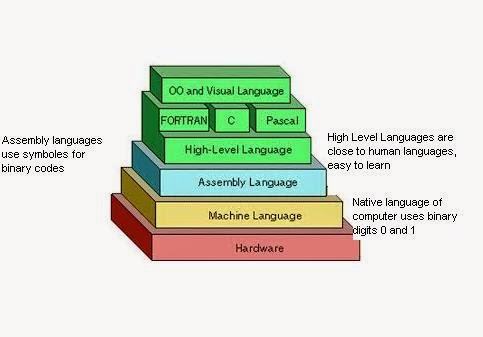
With the help of computer language, a programmer tells a computer what to do. Some popular computer programming languages are C++, Java, Visual Basic etc. These are examples of high level programming languages. Whereas machine language and assembly language are called low level programming language.

Another Definition of a Programming Language

A programming language is a language that is designed to be used (read and written) by humans to create programs that can be executed by computers. In other words we can say that programming languages provides the way so that the users may interact with the computer to give it commands and instructions to perform certain tasks.

Types of Programming Languages

There are two main types of computer programming languages.
•    low-level languages
•    high-level languages.

Low Level Programming Languages

These languages are near to computer hardware and far from human languages. Computer can understand these languages easily.

Following are two low-level languages:
•     Machine Language
•     Assembly Language

Machine Language

Types of programming languages - Machine language

A computer language in which instructions are written in binary form (0 and 1) is called machine language. It is the only language that is directly understood by the computer. Machine language is the native language of computer.
A computer language in which instructions are written in binary form (0 and 1) is called machine language. It is the only language that is directly understood by the computer.

Advantages of  Machine Languages

a)    Very fast program execution: Because the machine language is the native language of computer that computers directly understand and execute. There is no need of a translator program, because computer can already understand and execute the machine language instructions directly without the need of translation.  

Disadvantages of  Machine Languages:

a)    Machine Language is difficult to understand
b)    Machine Language is difficult to learn
c)    Programs of Machine Language are difficult to modify
d)    Machine Language requires deep knowledge of hardware
e)    Programs of Machine Language are difficult to remove errors
f)    Programs of Machine Language are Machine dependent
Machine language is also known as first generation language.

 Assembly Language

Types of Programming Languages - Assembly Language
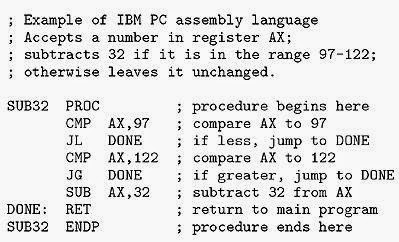
Assembly Language Example Code

Assembly language is a low-level language. In assembly language, symbols are used instead of binary code. These symbols are easy to remember. For example Add instruction is used to add two numbers.
Assembly language is also known as second generation language

Advantages of Assembly Langauge:

a) Assembly language programs are executed with fast speed
b) Assembly language programming is easier to learn, understand and modify than machine language
Disadvantages:
a)    Assembly language programs are machine dependent
b)    Assembly language programming requires deep knowledge of hardware

 High Level Programming Languages

A type of language that is close to human languages is called high level language. High-level languages are easy to understand. Instructions of these languages are written in English-like words e.g. Print, Display, Write etc.

  Examples of High Level Programming Languages


Types of Programming Languages - High Level Programming Language


Advantages of High Level Programming Languages:

Types of Programming Languages - Advantages of High Level Programming Language

a) High Level Programming Languages are Easy to learn and understand
b) Programs written in High Level Programming Languages are Easy to modify
c) It is Easy to remove errors in the Programs written in High Level Programming Languages
d) Programs written in High Level Programming Languages are Machine independent
e) High Level Programming Languages have Better documentation

Disadvantages of High Level Programming Languages

a) A disadvantage of High Level Programming Languages is slower program execution.
b) High Level Programming Languages provide programming facilities for performing Certain operations.

An Introduction To High Level Programming Languages

FORTRAN

FORTRAN stands for FORmula TRANslation. It is mainly used for writing applications related to science and engineering fields.

BASIC

BASIC stands for Beginners All-purpose Symbolic Instruction Code. It was invented in late 1960's to teach programming skills to students.


COBOL


COBOL stands for Common Business Oriented Language. It was especially designed for business applications.


C Language


C Language is one of the most popular programming language among students and beginners in the field of computer programming. C Language was designed by Dennis Ritchie at AT&T Bell Labs in 1972. Sometimes C Language is called a middle level language because it provides facilities to develop application software as well as system software. So C Language combines some important qualities of a high level language and a low level programming language.

Difference between Low-level and High-level Programming Language


High-level Language

Low-level Language

1.   High-level languages are easy to learn

1. Low-level languages are difficult to learn.

2.   near to human languages.

2, far from human languages.

3.    Programs in high-level languages are slow in execution.

3. Programs in low-level languages are fast in execution.

4.    Programs in high-level languages are easy to modify.

4. Programs   in   low-level   languages   are difficult to modify.

5.    Deep   knowledge   of hardware   is  not required to write programs.

5. Deep knowledge of hardware is required to write programs.


Topic: Explain Different Types of Programming Languages and Differences What is a programming language? Types of programming languages : Low level and high level programming languages with examples Differences between low level and high level programming languages

Find Your Correct Age From Date of Birth

First of all click on First two digits to type Month number from keyboard like any number from 1 to 12. . Now click on next two digits and t...