Sunday, March 8, 2015

Creating a Pie Chart in Microsoft Excel Tutorial With Pictures

Why Do We Use Excel Pie Charts?

Excel Pie Charts are used in a Microsoft Excel Worksheet to display the contribution of each cell value to the total value. Today, we will discuss the procedure of creating a Pie chart in Microsoft Excel. Start Microsoft Excel and perform the following steps as explained with the help of nice clear pictures.
Create Pie chart in MS Excel in easy practical steps
Creating Excel Pie Charts Easy Tutorial With Pictures

Steps To Create Pie Chart in Excel


1. Prepare Example Excel Worksheet For Pie Chart

Start Microsoft Excel with a new blank workbook. Microsoft Excel is a part of Microsoft Office.
Prepare a new Excel Worksheet as shown in the figure below to show Serial Numbers, Batsman and their Scores got in a cricket match. Fill in the sample data as you wish.

2. Select Cell Range To Prepare Excel Pie Chart

Select The Two Columns named Batsman and Scores with filled values and column titles, as shown in the figure above.

3. Use Insert Tab To Create Pie Chart

Click on Insert Tab and click on Pie Chart tool. Select a suitable type of Pie Chart, say we select the very first type from 2D pie charts. When you will click on this type of pie chart, the Pie Chart will be crated and shown in the you Excel worksheet as shown below.
Creating Excel Pie Charts Easy Tutorial With Pictures
Steps to create a PIE Chart in MS Excel

Making and Showing Excel Pie Charts
Explain the use of Pie Charts in Excel spreadsheet software

4. Changing Layout of Excel Pie Chart

You can change the layout of your Pie chart easily by selecting a suitable layout on Chart Tools as shown in the figure below
Changing Layouts of Pie Charts in Excel

5. Getting the Final Excel Pie Chart

As soon as you click on your selected layout, the Pie chart will be changed to new layout look as shown in the figure below.

How To Prepare an Excel Pie Chart
Thank you for coming and staying with us at Www.ForFreeEducation.Blogspot.Com a totally free blog for Perfect Computer Notes and much more.

You may also like to read:

Electricity Bill Calculator Formulas in Excel 
Microsoft Excel Formulas and Functions Fast and Easy Way -1

Using Simple Formulas in Excel With Arithmetic Operators 2

How Functions are Used in Excel Fast and Easy Way 3

Create Bar Chart in Excel Easily by Example

Employee Pay sheet Formulas in Microsoft Excel 

Students Test Score Grades Result Sheet in Excel

Microsoft Office Word Processing Practicals

Tuesday, March 3, 2015

Explain Procedural and Non Procedural Programming Languages

After reading this topic you will be able to clearly understand the meanings of Procedural and Non Procedural Languages and the differences between procedural and non procedural languages. 
Here is a brief note on procedural and Non Procedural Computer Languages:

Procedural Languages

Explain Procedural Languages and Non Procedural Languages in Computer Programming
Explain Differences between Procedural Languages and Non Procedural Languages in Computer Programming


In procedural languages a program is written as a sequence of instructions. We have to specify what to do and how to do. In procedural languages a program will tell the whole step by step procedure to perform a particular task or job.  So we provide a sequence of instructions and these instructions are executed in the given specified order. These instructions are written in order to solve a specific problem.
Procedural languages are also called 3rd Generation languages or 3GL.3GL languages are

Examples of procedural languages 

Examples of Procedural languages are FORTRAN, COBOL, BASIC, Pascal, C Language, C++, and Java etc.

a)    FORTRAN (FORrmula TRANslation)

FORTRAN is generally used by mathematicians to solve mathematical problems.

b)    COBOL (Common Business Oriented Language)

COBOL is one of the first popular programming languages for businesses.

c)    C – Language

C Language is one of the most popular high level programming languages. C language is used for System programming as well as for application programming. C language can be used to develop operating systems and application programs.

d)    BASIC (Beginners All Purpose Symbolic Language)

BASIC was developed for teaching purposes. It was used to teach how to program to students and beginners.

 Non-Procedural Languages

In non-procedural languages we have to specify only “what to do” and not “how to do”.  For example, SQL (structured query language) is a non procedural language. It is used in database systems.

Non Procedural languages are Fourth Generation Languages called 4GLs. In Non procedural languages we do not have to write whole set of instructions according to the logic of the program. But only one statement may be enough in a non procedural language to perform the whole job, for example select statement of SQL. Another example of non procedural languages is RPG

    a) SQL

SQL is the short form of Structured Query Language. Structured Query Language is the mopst popular database query language. SQL is used in Database Management Systems like Microsoft Access, ORACLE, MS SQL Server and MySQL.

    b) RPG

RPG is another example of a non procedural language. RPG stands for Report Program Generator. It is used for generating professional business reports.
   

Monday, March 2, 2015

Explain Different Types and Differences of Programming Languages and Differences

Topic: Explain Different Types of Programming Languages and Differences
What is a programming language?
Types of programming languages : Low level and high level programming languages with examples
Differences between low level and high level programming languages

What is a Programming Language?

A set of words, symbols and codes used to write programs is called programming language. Different programming languages are available for writing different types of programs.

Learn Programming now in easy steps from Perfect Programming Tutorial on EasyCodeBook.com

Explain different types of programming languages in detail
Explain different types of programming languages


With the help of computer language, a programmer tells a computer what to do. Some popular computer programming languages are C++, Java, Visual Basic etc. These are examples of high level programming languages. Whereas machine language and assembly language are called low level programming language.

Another Definition of a Programming Language

A programming language is a language that is designed to be used (read and written) by humans to create programs that can be executed by computers. In other words we can say that programming languages provides the way so that the users may interact with the computer to give it commands and instructions to perform certain tasks.

Types of Programming Languages

There are two main types of computer programming languages.
•    low-level languages
•    high-level languages.

Low Level Programming Languages

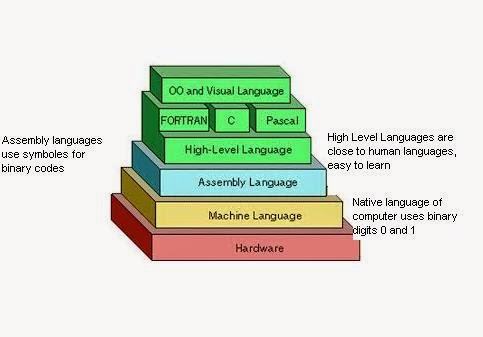
These languages are near to computer hardware and far from human languages. Computer can understand these languages easily.

Following are two low-level languages:
•     Machine Language
•     Assembly Language

Machine Language

Types of programming languages - Machine language

A computer language in which instructions are written in binary form (0 and 1) is called machine language. It is the only language that is directly understood by the computer. Machine language is the native language of computer.
A computer language in which instructions are written in binary form (0 and 1) is called machine language. It is the only language that is directly understood by the computer.

Advantages of  Machine Languages

a)    Very fast program execution: Because the machine language is the native language of computer that computers directly understand and execute. There is no need of a translator program, because computer can already understand and execute the machine language instructions directly without the need of translation.  

Disadvantages of  Machine Languages:

a)    Machine Language is difficult to understand
b)    Machine Language is difficult to learn
c)    Programs of Machine Language are difficult to modify
d)    Machine Language requires deep knowledge of hardware
e)    Programs of Machine Language are difficult to remove errors
f)    Programs of Machine Language are Machine dependent
Machine language is also known as first generation language.

 Assembly Language

Types of Programming Languages - Assembly Language
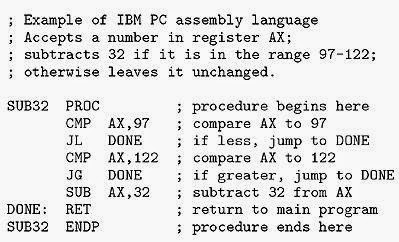
Assembly Language Example Code

Assembly language is a low-level language. In assembly language, symbols are used instead of binary code. These symbols are easy to remember. For example Add instruction is used to add two numbers.
Assembly language is also known as second generation language

Advantages of Assembly Langauge:

a) Assembly language programs are executed with fast speed
b) Assembly language programming is easier to learn, understand and modify than machine language
Disadvantages:
a)    Assembly language programs are machine dependent
b)    Assembly language programming requires deep knowledge of hardware

 High Level Programming Languages

A type of language that is close to human languages is called high level language. High-level languages are easy to understand. Instructions of these languages are written in English-like words e.g. Print, Display, Write etc.

  Examples of High Level Programming Languages


Types of Programming Languages - High Level Programming Language


Advantages of High Level Programming Languages:

Types of Programming Languages - Advantages of High Level Programming Language

a) High Level Programming Languages are Easy to learn and understand
b) Programs written in High Level Programming Languages are Easy to modify
c) It is Easy to remove errors in the Programs written in High Level Programming Languages
d) Programs written in High Level Programming Languages are Machine independent
e) High Level Programming Languages have Better documentation

Disadvantages of High Level Programming Languages

a) A disadvantage of High Level Programming Languages is slower program execution.
b) High Level Programming Languages provide programming facilities for performing Certain operations.

An Introduction To High Level Programming Languages

FORTRAN

FORTRAN stands for FORmula TRANslation. It is mainly used for writing applications related to science and engineering fields.

BASIC

BASIC stands for Beginners All-purpose Symbolic Instruction Code. It was invented in late 1960's to teach programming skills to students.


COBOL


COBOL stands for Common Business Oriented Language. It was especially designed for business applications.


C Language


C Language is one of the most popular programming language among students and beginners in the field of computer programming. C Language was designed by Dennis Ritchie at AT&T Bell Labs in 1972. Sometimes C Language is called a middle level language because it provides facilities to develop application software as well as system software. So C Language combines some important qualities of a high level language and a low level programming language.

Difference between Low-level and High-level Programming Language


High-level Language

Low-level Language

1.   High-level languages are easy to learn

1. Low-level languages are difficult to learn.

2.   near to human languages.

2, far from human languages.

3.    Programs in high-level languages are slow in execution.

3. Programs in low-level languages are fast in execution.

4.    Programs in high-level languages are easy to modify.

4. Programs   in   low-level   languages   are difficult to modify.

5.    Deep   knowledge   of hardware   is  not required to write programs.

5. Deep knowledge of hardware is required to write programs.


Topic: Explain Different Types of Programming Languages and Differences What is a programming language? Types of programming languages : Low level and high level programming languages with examples Differences between low level and high level programming languages

Sunday, December 14, 2014

How To Unsubscribe Utunes Service of Ufone

Today, We will discuss the simple and easy way to unsubscribe the Utunes Service of Ufone. Remember, Utunes service will cost you at the rate of  Rs. 1.55 daily.


easy way to unsubscribe the Utunes Service of Ufone


I was using the mobile phone of my son when I saw an SMS message from Ufone Hisaab SMS. The message was in Urdu language and it was informing the cost of Utunes Service Rs. 1.55 per day. The message of Hisaab SMS is shown in the following figure:

 What is Utunes Sevice

 With Ufone UTunes service your friends and family can listen to your favorite tunes every time they call you. You can select a UTune from the content library.
Simple Steps to Deactivate and UnSubscribe Utunes Service


I think Utunes is one of the most useless services of Ufone that is costly too. So I tried to find the solution for deactivation of Utunes service instantly.


Hisaab Do Ufone Service To Reaveal Utunes Money Deduction

How To Unsubscribe / Deactivate Utunes Service

Send UNSUB Message To 666 To Deactivate Utunes
  • Type a new message "UNSUB" and send it to the number 666.
  •  You will recieve a message from Ufone 666 as shown in the following figure, if you are lucky enough.
  •  Otherwise you can call the Ufone help line 333 and ask the person to unsubscribe the Utune service from your number. Normally the person on 333 Ufone Help Desk will ask you that he/she is sending the procedure to unsubscribe / deactivate the Utunes Service. But you must insist so that deactivates the Utune service himself
Utune Service Unsubscribed Deactivated Successful Way

Here I will provide you with the easy way to unsubscribe Ufone utunes service. I think Utunes is one of the most useless services of Ufone that is costly too. So I tried to find the solution for deactivation of Utunes service instantly. Learn how to unsubscribe utunes service with the help of pictures.


Sunday, November 30, 2014

How Functions are Used in Excel Fast and Easy Way 3

What is a Function in Microsoft Excel?

Microsoft Excel provides a large number of Functions for processing data in Excel Worksheets easily. Functions are predefined formulas in Excel. These functions are used in different types of calculations on numerical or other data  quickly.

How a Function is Used in Microsoft Excel?

There are three popular ways to use built-in functions in Microsoft Excel.

1. Type Functions Manually
2. Use Function Library Commands
3. Use Insert Function Dialogue Box

Other Microsoft Excel Topics on www.ComputerGap.com 

Microsoft Excel Formulas and Functions Fast and Easy Way -1

Using Simple Formulas in Excel With Arithmetic Operators 2

How Functions are Used in Excel Fast and Easy Way 3

Create Bar Chart in Excel Easily by Example

Employee Pay sheet Formulas in Microsoft Excel 
Students Test Score Grades Result Sheet in Excel

Electricity Bill Calculator Formulas in Excel 
 
Microsoft Office Word Processing Practicals

1. Type Functions Manually

You can type a function manually in the required cell. First of all press Equal key from keyboard. Then start typing function name, for example, type SUM. A formula autocomplete list box will be displayed. Press TAB key when SUM is selected in the autocomplete formula list box. Type cell reference of first cell, suppose A1, type a colon ( : ). Type the cell reference of the last cell, suppose A4 as shown in the figure. Press Enter. You will see the result 100 in this cell.
How Functions are used in Microsoft Excel Quick and Easy Way 3


A function is used by its name and providing some arguments to the function. The arguments are the necessary data values for calculation. Moreover, there is an EQUAL sign before every function name.
Notes on Microsoft Excel Functions How to type a function manually
Notes on Microsoft Excel Functions - SUM function

General Syntax of a Function in Microsoft Excel


=FunctionName(Argument1, Argument2,...)
Arguments can be numbers in mathematical functions or cell references etc. If the cell references are used the syntax becomes
=FunctionName(CellRef1:CellRef2)
where CellRef1 represents the cell reference of the first cell in the range and CellRef2 represents the cell reference of the last cell in the range. For example in the given figure,
=SUM(A1:A4)
Notes on Microsoft Excel Functions

2. Use Function Library Commands


Another way to insert a function in a cell is to use the icons in the Formulas each of which is a drop-down control.

How to use a function through FUNCTION LIBRARY COMMANDS in Excel
When you select a function from one of these lists, Excel displays its Function Arguments dialog box to help you enter arguments. The rest of the procedure is the same as in first method.
Notes on using Microsoft Excel Functions


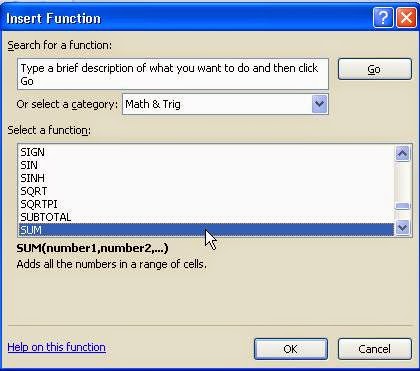
3. Use Insert Function Dialogue Box


Notes on using Microsoft Excel Functions - How to Use Insert Function Dialog Box in Microsoft Excel
Using the Insert Function dialog box ensures that you spell the function correctly and that it contains the proper number of arguments in the correct order. Select a suitable category of the function, for example, if you want to use SUM function then it will be found in Math & Trig category of functions. Search and select the function SUM and click on OK button. Now Function arguments dialog box will open, type suitable arguments.
Notes on using Microsoft Excel Functions - How to Use Insert Function Dialog Box in Microsoft Excel

To insert a function, select the function from the Insert Function dialog box, as shown in Figure

You access this dialog box by

  • Choosing Formulas, Function Library,Insert Function
  • Choosing Formulas,Function Library, AutoSum, and then clicking More Functions in the

drop-down list
Notes on using Microsoft Excel Functions - How to Use Insert Function Dialog Box in Microsoft Excel

       In Function Arguments dialog box, you can enter the cell reference of first cell and a colon ( : ) and the cell reference of the last cell to add all the numbers in the cells between these two cells including, as shown in the figure. After giving argument values click on Ok button and the result 100 will be shown in the required cell.
Microsoft Excel Formulas and Functions Fast and Easy Way -1

Using Simple Formulas in Excel With Arithmetic Operators 2

How Functions are Used in Excel Fast and Easy Way 3

Create Bar Chart in Excel Easily by Example

Employee Pay sheet Formulas in Microsoft Excel 
Students Test Score Grades Result Sheet in Excel

Electricity Bill Calculator Formulas in Excel 
 
Microsoft Office Word Processing Practicals

Thursday, November 27, 2014

Using Simple Formulas in Excel With Arithmetic Operators-2

What are Arithmetic Operators in Excel?


Arithmetic Operators are used to perform arithmetic operations like addition, subtraction, multiplication and division etc. There are following arithmetic operators in Microsoft Excel:
Using Arithmetic / Mathematical Operators in MS Excel Formulas

1.  + Operator


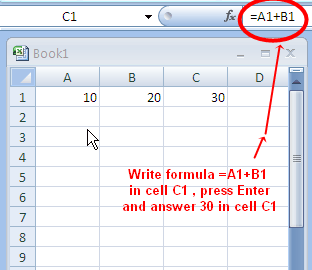
The + arithmetic operator is used to perform addition of numbers. It is used with in formulas along with Cell References normally. For example, to add the number 10 in A1 cell and the number 20 in B1 cell, we can write a formula =A1+B1 in cell C1. After pressing Enter key we will see the answer 30 in the cell C1.

Important Points To Write a Simple Formula in Excel


  1. Every formula in Microsoft Excel is started with an Equal sign ( = ).
  2. Arithmetic operators (+ for addition, - for subtraction, * for multiplication, / for division) are used.
  3. Percentage is calculated by % operator. ( =B2*10%       means 10% of the number in cell B2)
  4. Power function is performed by ^ operator. (3^2 will give 9) 

Use of addition arithmetic operator in Excel


2.  - Operator


The - arithmetic operator is used to perform subtraction of numbers. It is used with in formulas along with Cell References normally. For example, to subtract the number 100 in B1 cell from the number 50 in A1 cell, we can write a formula =B1-A1 in cell C1. After pressing Enter key we will see the answer 50 in the cell C1.
Use of subtraction arithmetic operator in Excel


3.  * Operator


The * arithmetic operator is used to perform multiplication of numbers. It is used with in formulas along with Cell References normally.

Use of multiplication arithmetic operator in Excel
For example, to multiply the number 10 in A1 cell with the number 20 in B1 cell, we can write a formula =A1*B1 in cell C1. After pressing Enter key we will see the answer 200 in the cell C1.


4.  / Operator


The / arithmetic operator is used to perform division of numbers and gives quotient of the division. It is used with in formulas along with Cell References normally.

Use of division arithmetic operator in Excel
 For example, to divide the number 10 in A1 cell by the number 5 in B1 cell, we can write a formula =A1/B1 in cell C1. After pressing Enter key we will see the answer 2 in the cell C1.


5. % Operator


The % arithmetic operator is used to calculate percentage. It is used with in formulas along with Cell References normally.

Use of Percentage arithmetic operator in Excel

For example, to calculate the 10 % of the number 1000 in A1 cell, we can write a formula =A1*10% in cell B1. We will read the formula =A1*10% as "10% of A1" means 10% of the number in cell A1. After pressing Enter key we will see the answer 100 in the cell B1.


6.  ^ Operator  (Exponent operator or Power operator)


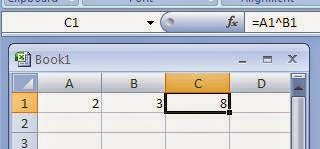
The ^ arithmetic operator is used to calculate a number n raised to the power p. For example 2^3 is equal to 8 ( 2 raised to the power 3).
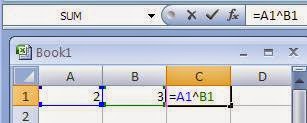
 Use of exponent - Power arithmetic operator in Excel
It is used with in formulas along with Cell References normally. For example, to calculate 2 raised to the power 3, type 2 in Cell A1 and 3 in cell B1. Now we can write a formula =A1^B1 in cell C1. After pressing Enter key we will see the answer 8 in the cell C1.

Order of Precedence of Arithmetic Operators in Excel


Order of precedence means the order in which operations will be performed when evaluating an expression in Microsoft Excel.

1. First of all the operation in parentheses ( ) is performed if any. If nested parentheses exist in expression, then the inner most parentheses will be evaluated first.
2. Secondly, Exponents will be evaluated if any.
3. In third step, multiplications and divisions will be calculated from left to right order.
4. In fourth step, additions and subtractions will be performed in Left to Right order.

Example: Evaluate the following expression according to the order of precedence in Excel
               =A1*B1-C1*(20+3)
Order of precedence of Arithmetic Operators in Microsoft Excel

Solution:  Let A1=10,   B1=5,    C1=2
            
               Step 1. First of all parentheses (20+3) is evaluated to 23
                             Now expression becomes  =A1*B1-C1*23
              Step 2. Now there is no exponents, so we check multiplication and division. There are
                          two multiplication operators. Since A1*B1 is on left so we evaluate it by putting values
                          10*5 the answer is 50. Therefore expression is reduced to =50-C1*23
              Step 3. Now we will evaluate multiplication C1*23. Putting values 2*23 and the answer is
                          46. So the expression becomes  50-46.
              Step 4. Now we will evaluate the last operation of subtraction 50-46 which gives the answer 4.


Find Your Correct Age From Date of Birth

First of all click on First two digits to type Month number from keyboard like any number from 1 to 12. . Now click on next two digits and t...