Thursday, July 3, 2014

Electricity Bill Calculator Formulas in Excel

Today, we will discuss How to create an Electricity Bill Calculator Worksheet by using Electricity Bill Calculator Formulas in Excel. The following formulas will be used in Electricity Bill Calculator Worksheet:
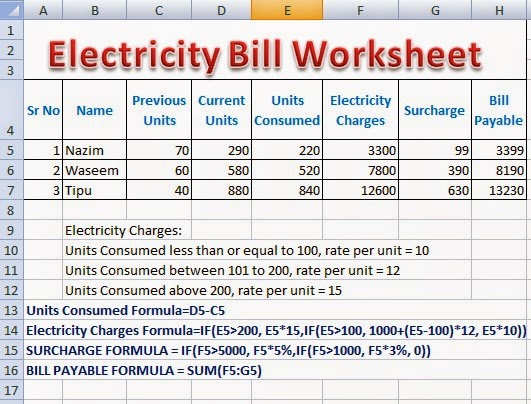
Q: Prepare a worksheet according to the following instructions:

  1. Create a worksheet in MS Excel according to the requirements
  2. Enter sample data of Electricity units consumed by customers in a city
  3. Apply formula to calculate Units Consumed
  4. Apply formula to calculate Electricity Charges
  5. Apply formula to calculate Surcharge
  6. Apply formula to calculate Bill Payable
  7. Note: Every formula will start from  = 

Units Consumed Formula=D5-C5
Electricity Charges Formula=IF(E5>200, E5*15,IF(E5>100, 1000+(E5-100)*12, E5*10))
SURCHARGE FORMULA = IF(F5>5000, F5*5%,IF(F5>1000, F5*3%, 0))
BILL PAYABLE FORMULA = SUM(F5:G5)
Download Excel Electricity Bill Calculation Worksheet Free

 Image for Electricity Bill Calculator Formulas in Excel Software


Solution:
  1. Create a new workbook in MS Excel and save as with the name Electricity Bill Calculator Formulas in Excel
  2. Enter sample data for at least three customers
  3. Enter formula for Units Consumed= D5 - C5 in cell with cell reference E5.
  4. Enter formula for Electricity Charges =IF(E5>200, E5*15,IF(E5>100, 1000+(E5-100)*12, E5*10)) in cell with cell reference F5.
  5. Enter formula for Surcharge = IF(F5>5000, F5*5%,IF(F5>1000, F5*3%, 0)) in cell with cell reference G5.
  6. Enter formula for Bill Payable =SUM(F5:G5) in cell with cell reference H5.
So, the worksheet with Electricity Bill Calculator Formulas in Excel Worksheet has been prepared successfully.

Download the Original Workbook File Prepared For Electricity Bill Calculator Formulas in Excel

Sponsored Links

Click to Download Excel Workbook For Electricity Bill Calculator Formulas in Excel Worksheet
Electricity Bill Calculator Worksheet with Formulas in Excel is normally required to be prepared by the students of a Basic Microsoft Office Training. There are very simple formulas used to calculate monthly electricity bill of the customers living in a town. Although, the electric supply company may use a customized software for preparing electricity bills, the students of Microsoft Excel will learn the use of different formulas and built-in functions to prepare Electricity Bill Calculator Worksheet with Formulas. Microsoft Excel can be very helpful to prepare such worksheets.


Microsoft Excel Practical Worksheet Preparation With  Predefined Functions and Formulas

Microsoft Excel Formulas and Functions Fast and Easy Way -1

Using Simple Formulas in Excel With Arithmetic Operators 2

How Functions are Used in Excel Fast and Easy Way 3

Create Bar Chart in Excel Easily by Example

Employee Pay sheet Formulas in Microsoft Excel 
Students Test Score Grades Result Sheet in Excel

Electricity Bill Calculator Formulas in Excel 
 
Microsoft Office Word Processing Practicals

Popular Networking Theory

8.1 Explain Advantages Of Networks8.2 Types Of Computer Networks8.3 Differences between LAN and WAN8.4 Bus Topology Advantages Disadvantages8.5 Advantages and Disadvantages of Star Topology8.6 Advantages and Disadvantages of Ring Network Topology8.7 Advantages and Disadvantages of Tree Topology8.8 Advantages and Disadvantages of Mesh Topology8.9 Advantages and Disadvantages of LAN Local Area Network


Wednesday, July 2, 2014

Employee Pay sheet Formulas in Microsoft Excel

Today, we will discuss How to create an Employee Worksheet by using Employee Pay sheet formulas in Microsoft Excel. The following formulas will be used in Employee Pay sheet: Q: Prepare a worksheet according to the following instructions:
  1. Create a worksheet in MS Excel according to the requirements
  2. Enter sample data of employees in a college
  3. Apply formula to calculate Medical Allowance @ 40 % of Basic Pay
  4. Apply formula to calculate Conveyance Allowance @ 30 % of Basic Pay
  5. Apply formula to calculate House Rent @ 50 % of Basic Pay
  6. Add a column of Income Tax @ 7 % of Basic Pay
  7. Apply formula to calculate Net Pay = Medical Allowance + Conveyance Allowance + House Rent - Income Tax

Image for Employee Pay sheet Formulas in Microsoft Excel Software

Employee pay sheet Formulas in MS Excel

 Solution:How to Create Employee Pay Sheet in Excel With Formulas

  1. Create a new workbook in MS Excel and save as with the name Employee Pay sheet Formulas.
  2. Enter sample data for at least three employees.
  3. Enter formula for Medical Allowance = D5 * 40% in cell with cell reference E5.
  4. Enter formula for Conveyance Allowance = D5 * 30% in cell with cell reference F5.
  5. Enter formula for House Rent = D5 * 50% in cell with cell reference G5.
  6. Enter formula for Income Tax = D5 * 5% in cell with cell reference H5.
  7. Enter formula for Net Pay = D5 + E5 + F5 + G5 - H5 in cell with cell reference I5.
So, the worksheet with Employee Pay sheet Formulas has been prepared successfully.

Download the Original Worksheet Prepared For Employee Pay Sheet Formulas

Sponsored Links

Click to Download Excel Workbook For Employee Pay sheet Formulas

Employee Pay sheet is normally required and maintained in every small business organization. There are very simple formulas are used to calculate monthly pay of the employees working in a small business. There is no need to develop a software for this purpose in a small book shop. Because, Microsoft Excel can be very useful to prepare such employee pay sheet with formulas.

Employee Pay sheet Formulas in Microsoft Excel

Here is the
Picture of Complete MS Excel Worksheet on

Employee Pay sheet Formulas in Microsoft Excel

Employees Pay Sheet Formulas Complete MS Excel Worksheet


Tuesday, June 10, 2014

How to Protect Excel Workbook with Password

Today, we will discuss a basic MS Excel Tutorial with a lot of pictures on How to Create a New Work book, Save workbook and Apply Password Protection on workbook in MS Excel.

Here is a list of topics to discuss:

  • Create a new Excel Work Book
  • Save a Work book
  • Password Protect a work book
How to Protect Microsoft Excel File With Password

How to Create a New Microsoft Excel Workbook?

  1. Start Microsoft Excel. It will open with a new workbook already created.
  2. OR when Excel is open, click on Office button and click on New.
  3. OR Press Ctrl + N from keyboard

How to Save a MS EXCEL Workbook?

  1. Click on Office button and click on Save As option
  2. OR press CTRL + S
  3. Save As dialogue box will open
  4. Select the drive and folder location to save file
  5. Type work book name
  6. Click on Save button to save the workbook 
Apply Password Protection in MS ExcelUse of Password Protection in Microsoft Excel


How to Apply Password Protection on Excel Workbook

  1. Repeat the above mentioned steps from 1 to 5 as in SAVE WORKBOOK method.
  2. Click on Tools button which is before SAVE button on Save As dialog box
  3. Click on General Options
  4. Type a password in Password to Open text box, press Enter
  5. Confirm password and click on Ok button
  6. Click on Save button.
  7. Now workbook is password protected.
  8. Next time, when you open this work book, it will ask a password before opening.
Secure Excel Workbook with password


Method of Password Protection in Microsoft Excel

Sunday, May 25, 2014

Download Top 7 Free Antivirus

Here is a list of  a comparative grading of World's Most Popular Free Antivirus Solutions. This list of results was published by PCMAG, after a series of tests in PCMAG's Labs.

Here is a list of Top Most Popular and Competent Free Antivirus Software as shown and rated by Different Popular Online Software Collection Providers like, Softpedia, Snapfiles.com and Cnet.com along with PCMAG.

So, Download Your Selected Antivirus from the Following List of  Top 7 Free Antivirus software of 2014:

1. AVAST


World’s most-trusted antivirus

avast! now protects over 200 million PCs, Macs, and Androids globally – more than anyone else. Download avast!  free today!

2. AVG


Get our essential award-winning

free protection now


AVG AntiVirus FREE Free Download

3. AVIRA


Avira Free Antivirus
Effortless protection for virus-free devices

 Download Avira Antivirus Free 

4. BitDefender


Trust Bitdefender Security Technologies
500 million users already do

Download Bitdefender Antivirus Free Edition 

5. COMODO


 Free Firewall and Antivirus
Business Firewall & Antivirus
Endpoint Security Manager 3.0

Network protection that allows you to manage centrally and improve performance and profitability.

Download Comodo Free Antivirus Solutions

6. PANDA CLOUD ANTI VIRUS


Our antivirus products
take care of your computer.
We take care of you.
DOWNLOAD Panda CLOUD Antivirus 2014.

7.  Sophos


Virus Removal Tool

Our free Virus Removal Tool is a quick and easy way to find and get rid of any threats lurking on your computer. Our tool identifies and cleans up infections your antivirus might have missed.
  • Removes viruses, Conficker, rootkits and fake antivirus
  • Supports Windows XP SP2 and up
  • Works alongside your existing antivirus

Download Free Sophos Antivirus Tools


Download Top 7 Best Free Antivirus Software 

Vendor Detection Cleaning Protection False Positive Performance Overall Grading
AVAST 4 5 4 5 4 22
AVG 4 0 2 5 4 15
Avira 5 5 5 4 3 22
BitDefender 5 5 5 5 5 25
Comodo 1 0 5 2 2 10
Panda 3 5 4 2 3 17
Sophos 5 5 5 5 5 25

Tuesday, May 13, 2014

Explain Advantages and Disadvantages of Fiber Optic Cable

What is a Fiber Optic Cable?

A Fiber Optic cable comes with the technology that uses glass threads called fibers to transmit data as pulses of light. A fiber optic cable consists of a bundle of glass threads, each of which is capable of transmitting messages modulated onto light waves.
A Fiber Optic Cable transmits data as pulses of light through tiny tubes of glass. A Fiber Optic cable has a very narow strand of glass like human hair.

 What is Bandwidth of a Fiber Cable?

 Modern fiber cables can contain up to a thousand fibers in a single cable, with potential bandwidth in the terabytes per second. 

Explain Advantages and Disadvantages of Fiber Optic Cable

Advantages of fiber Optic Cables

  1. Fiber Optic cables are used to create very high speed networks.
  2. Fiber Optic cables come with a very high information carrying capacity.
  3. Electromagnetic waves cannot disturb the data passing through the Fiber Optic cables.
  4. Fiber Optic Cables provide a more reliable and secure data transmission.

Disadvantages of Fiber Optics

  1. Fiber Optic cables are very Expensive. Therefore Fiber Optic may be used only if we need a very high speed data transfer network in large organizations. Small organizations my not afford Fiber Optic networks.
  2. A Fiber Optic media is difficult to install.

Monday, May 5, 2014

Explain Different Uses of Communication Technologies

Following are the main uses of Communication Technologies:

1. Video Conferencing


Video Conferenccing combines the computer communication capabilities with video technologies to conduct an online meeting between two or more distant participants. The participants of a Video Conferencing are normally at different geographical locations within a building like a university campus or within a city at different branch offices of an organizaion in a city.

Uses of Communication Technologies video conferencing
If the communication technology is supported with high speed internet, the participants may in different cities or even in different countries of the world.

Uses of Video Conferencing


  1. Online Meetings
  2. Online Job Interviews
  3. Technical Support
  4. Distance Learning
Requirements for Video Conferencing

It requires:
  1. A P-IV computer
  2. Microphone
  3. Speakers
  4. Video Cameras
  5. Communication Devices
  6. Communication Software
  7. High Speed Broad Band Internet 

2.   Voice Mail


Voice Mail works as an answering machine.

Uses of Communication Technologies voice mail
The caller may leave a voice message. The computer records the voice message and stores it in a Voice Mail Box in its storage.

3.   E-Mail


E-Mail stands for Electronic Mail. E-Mail is used to transfer text messages optionally along with files or documents. Every user has a unique E-Mail Address.

Uses of Communication Technologies e-mail Normally E-Mail Technology uses Local Area Networks or Internet as commuincation channels to transmit messages.

4.   Instant Messaging


Instant Messaging or IM uses some communication software and User IDs to allow users to communicate and exchange their messages while they are online at the same time and using the same communication software at the same time.
Uses of Communication Technologies IM

Popular communication software include MSN Messenger, Yahoo Messenger, AOL Messenger etc.

5.  FAX


FAX Machine is used to send and recieve important copies of written text or images on paper. A FAX Modm can also be used to send and recieve Fax through Internet. A FAX may be a hand written text or a printed paper.

Uses of Communication Technologies FAX The Fax sent by Computer FAX Modem and Internet is economical than sending FAX through FAX Machine.

6.  Internet Telephony


Internet Telephony is a facility to talk with people at distant locations with the help of internet and Communication Devices and Software. Internet Telephony is more economical and chepaer way to talk to your friends and relative residing in other countries.

Uses of Communication Technologies Internet phone  You must have a good computer with microphone, speakers, communication devices and internet. In fact, Internet Telephony uses a communication Technology called Voice Over Internet Protocol or Voice over IP or VoIP.

7. Chat Rooms

Uses of Communication Technologies Chat Rooms
Chat Rooms are used to chat with known or anonymous people in real time while they are online. A Chat Server and chat software is used to provide the facility of text chat, voice chat or even video chat to people.

8. Global Positioning System ( GPS )


GPS or Global Positioning System consists of 24 setellites and one or more earth based recievers that receive and analyse signals sent by setellites to find the exact location of the reciever. A GPS reciever may be a hand held device. A GPS receiver device may be mounted on a car, airoplane, boat, mobile phone or such objects.
Uses of Communication Technologies GPS

Uses of GPS

  1. A Global Positioning System  is used to locate a person or object.
  2. A GPS system is used to find the shortest and best path between two points ( even on a map )
  3. A GPS system may also be used for Intelligence purpose by agencies to monitor the movement of an object or a person.
  4. A GPS system is also being used to find out the location of stolen objects like vehicles, computers, and mobile phones etc.

Friday, May 2, 2014

Memory and Virtual Memory Management

What is Memory Management?

One of the main functions of Operating systems is Memory Management. Memory Management may be defined as the process of managing the optimal use of main memory that is RAM (Random Access Memory). RAM is much faster than hard disk. So RAM is used to store data and instructions temporarily while they are being executed by CPU ( Central Processing Unit or PROCESSOR ). CPU can get data and instructions from RAM much faster that from hard disk.

As we know CPU is a very very fast device. It may execute billions of instructions per second. CPU will have to wait for data and instruction from hard disk because getting data from hard disk is very slow. That is why RAM is used. So data and instructions needed for execution are brought into main memory that is RAM first. Now RAM provides data and instructions to CPU rapidly.
What is Memory Management

What is Memory Management and virtual memory management

Operating System allocates the required memory are in main memory to programs that are a candidate for execution. The allocated memory area will be de-allocated when the program will finish execution.

What is Virtual Memory?

Some times, main memory that is RAM is not enough to run larger programs. In this case, some operating systems apply the technique of VIRTUAL MEMORY to overcome the problem of small RAM. 

The operating system uses a particular area of hard disk as additional RAM (virtually). The most wanted part of the program in execution may be kept in RAM while the remaining part of that program may on the particular part of the hard disk. This is called Virtual Memory. The area of hard disk used for virtual memory is called a SWAP file. The Swap file is used to exchange data and instructions of a running program between RAM and Hard disk.


Find Your Correct Age From Date of Birth

First of all click on First two digits to type Month number from keyboard like any number from 1 to 12. . Now click on next two digits and t...