Thursday, April 18, 2013

Damages Caused by Computer Virus

A computer virus is a program or software that can disturb normal working of a computer system. A computer virus may cause many types of damage to a computer system. A Computer virus can attache to files in memory or disk. When we copy infected files from one computer to another, virus is also copied.
A Computer virsu can harm a computer system in the following ways:

Disadvantages of Computer Virus

    1. Damage of Data, Information and Software


    A Computer virus may damage data, information and software of the computer. Data is the most important part of an organization. For example, a bank totally depends on financial transactions and any loss of even a little data can be dangerous. Moreover, if computer virus corrupts files of a software, you will have to reinstall the software.

    2. Deletion of Stored Files


    A Computer virus may delete important data files stored in a computer.

    3. Format Hard Disks


    A Computer virus can delete all data on hard disk by formatting the hard disk. Formatting a hard disk will erase all the data on a hard disk, including any type of data or software etc. You will consume a lot of time to reinstall all the software and recover data.

    4. Annoying Popup Window Messages

    A Computer virus may display a popup window message every few seconds or minutes. This will interrupt your work, waste your precious time and you will not be able to use your computer efficiently.

    5. Restarting a Computer

    A Computer virus may cause a computer to restart again and again. Such viruses execute a specific set of instructions at the start-up time that cause to restart the computer.

    6. Slow Down System Performance


    A Computer virus may slow down the working of computer. It may replicate itself in memory (RAM). So, there is a time when no more RAM to execute programs. This may halt the smooth operation of the computer.

    7. Fill Disk Space

    A Computer virus may consume a lot of disk space by copying it self in different areas of a hard disk. This will consume disk space making it impossible to copy or store your important data on disk.

    8.    Stealing of Important Personal Information

    A Computer virus may cause to send your personal information to the creator of the virus through internet. When you will connect internet, the virus code will execute and send your personal information to a specific email address.

    9. Fake Virus Alerts


    A Computer virus can display a fake virus alert and may ask to install an Anti Virus from the website of the virus creator.

    10. Making a Computer Unusable

    A Computer virus may make your computer totally unusable. Sometimes, a computer virus can erase all data of your hard disk or Operating system files causing the computer not to boot.

      Sunday, March 17, 2013

      Forgot your Gmail Password - Easy To Follow Password Recovery Instructions

      Dear Reader, You came here to Find a way to recover your Forgotten GMail Password. You are most welcome! Here I will give you a pictorial presentation with text illustrations to recover your Google Mail Password easily. Before we proceed, It will be better to know that their are four ways to reset your GMail password by starting GMail Password Recovery Process.
      Forgot your Gmail Password - Easy To Follow Password Recovery Instructions
      Explain GMail Password Recovery Process The Easy Way
      • 1. When you created the GMail account, you provided your phone number to Google Inc. Now Google can send you a Verification Code on this phone number to verify your account.
      • 2. Google Inc. can verify your account by an automated call on your phone number.

      • 3. Google Inc. can verify your account by RECOVERY EMAIL or alternate or secondry email address you already provided.
      • 4. Google Inc. can verify your account by asking Questions about your account. 
      Now, here is the step by step password recovery procedure:
      How to recover Gmail Account Password 
      Recovering Gmail Password easily
      Recovering Gmail Password easily

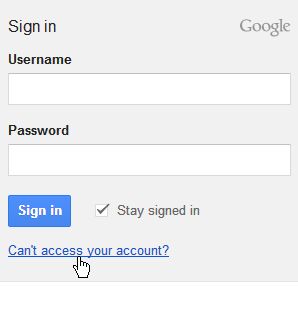
      • 1. Open gmail.com in your browser window.
      •  2. Click on 'Can.t access your account?'
      • 3. In next screen, you can select one option for example, 'I don't know my password' . Type your email address and click on Continue button.
      • 4. Enter your phone number. You can see the hint for your phone number.
      • 5. You can select verification code by SMS or by an automated phone call by Google Inc.
      Procedure of recovering gmail account password

      •  6. When you click on the continue button, you will get the Google verification code on your phone by sms. Enter this 6 digit verification code as shown in the picture.
      Password recovery for gmail account

      • 7. Now you can reset your password by providing a new password and then confirming it.
      Password recovery for gmail account
      •  8. Congratulations you have reset your GMail password successfully.
      •  
      • 9.  Similarly you can recover password by Recovery Email method, or answering questions about your Gmail account.


      Tuesday, November 27, 2012

      How To Change Password of Hotmail Account

      Sometimes, you may need to change the password of your Hotmail email account. One reason of changing password may be that your friend has seen the password and he may hack your Hotmail accont.

      1. Type www.hotmail.com and press enter key.

      2. Type your username and password and click sign in link.

      3. Go to inbox.

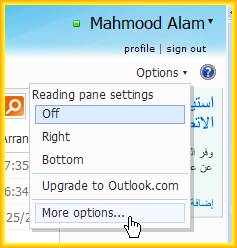
      4. Click on the Options link.

      5. Click on more options link.

      6. Click on 'Account dtails(password, aliases, time zone)' link, under 'Managing your account' heading.


      7. Here you will be asked your password again. Type your current password and sign in.

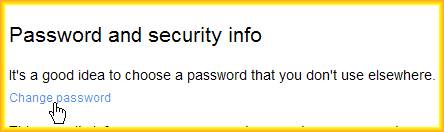
      8. Click on Change password link.
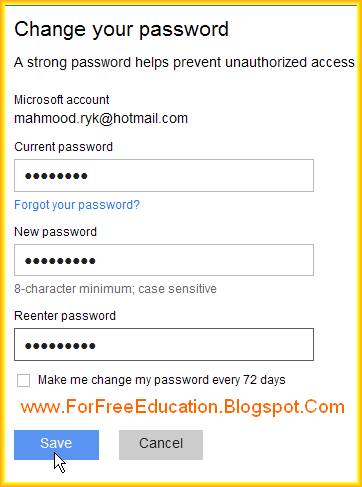
      9. Type your current password in first box, new password in second box, Retype youe new password in third box.

      10. Click on save button.

      11. You will be informed by the message that your password has been changed.

      How To Send New Email on Hotmail

      1. Type www.hotmail.com and press enter key.

      2. Type your username and password and click sign in link.

      3. Goto inbox.


      4. Click on the New link.

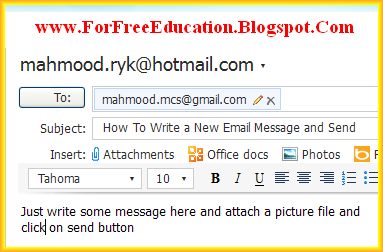
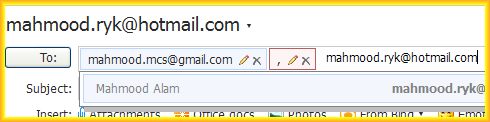
      5. In 'TO' text box, type email addresses separated by commas of your friends to send email.

      6. Type any subject related to your email purpose, in SUBJECT box.

      7. Type your email message in detail in main editor window. if you want to add more addresses in To box then type another email address after a comma.


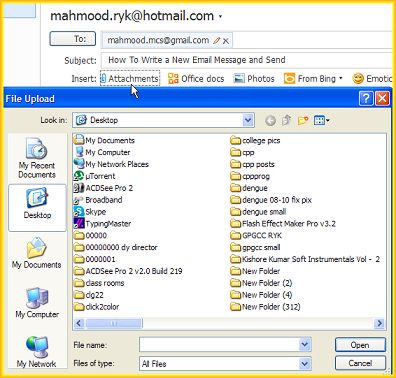
      8. If you want to send a file, for example, your picture or a word document to your friends, clcik on
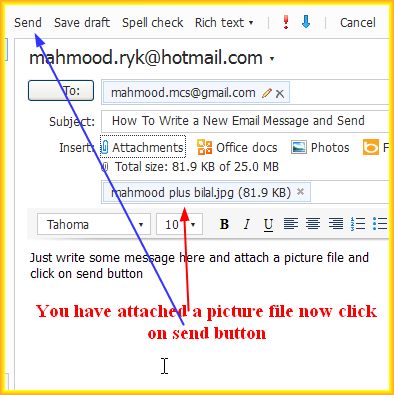
      attachemts link. File Upload dialog box will open, select the file and click on open. Wait until the file may be uploaded and its name will be seen under attachements link.

      9. Click on the 'Send' link.

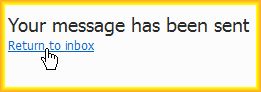
      10. 'Your message has been sent' message will appear on screen.

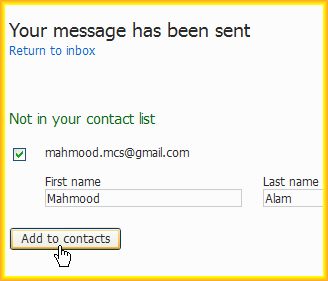
      11. There may be an option to add new contacts in your contacts list.

      12. Type First and Last name of the contact and click on 'Add To contacts' button.

      13. Click on Go to inbox link.

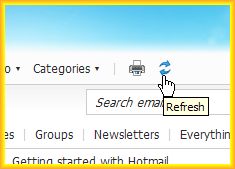
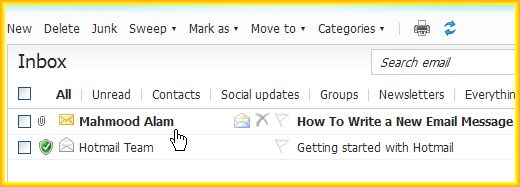
      14. If you has sent this email to your own email address, it will be shown in your inbox, too. If you do nop
      see it there, click on the refresh icon. Now you can see your email message shown in inbox.

      Monday, November 26, 2012

      Explain How To Create Hotmail Email Account

      Step by Step Procedure To Create Free Hotmail E-Mail Account

      How to Create New Hotmail Account Free
      1. Open your web browser, type www.hotmail.com and press enter key.
      2. On the home page of Hotmail Click Link of Sign Up Now on bottom.
      Get a new Hotmail Email Account Free
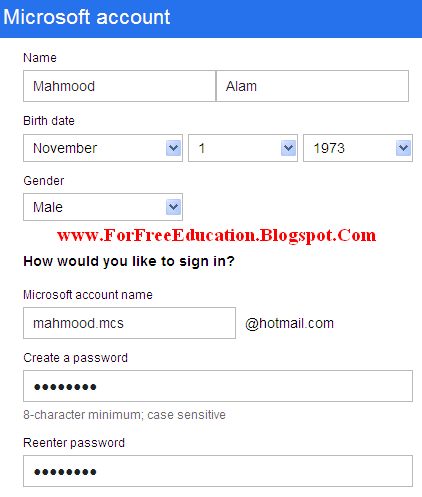
      3. Now, you will see a form requiring some information about you. Fill in the form for Hotmail Email Account carefully. First of all, you need to enter your First Name and Last Name. Secondly, select your date of birth.
      4. Select your gender.
      5. Now,you must choose a unique user name. Type a user name, for example, mahmood.mcs. Click left button of mouse in the next text box named Create a password.
      4. Now type a password. This password should be at least 8 characters long and a combination of alphabets and numbers is better and secure. You must remember this password to access your Hotmail email account. Type this password in the next text box labelled 'Renter password' again.
      Create New Hotmail Account
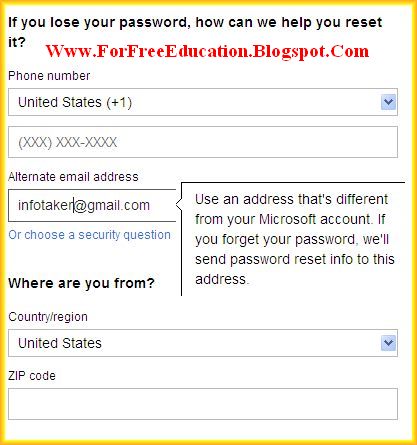
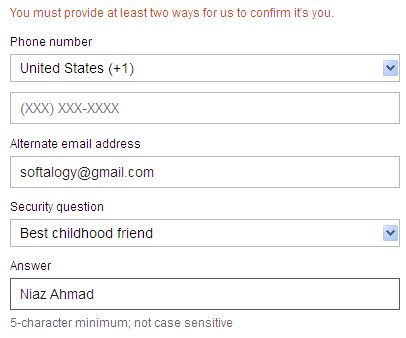
      5. In this step, you will enter the necessary information for your identification and password reset, if you forget your password. This information will be of three types. You must give two type of information at least.
          i) Your Phone Number
      Here you will enter your phone number, so that if you forget your password then you will get password reset information on this phone number.
          ii) Your Alternate email address
          iii) Your security question and the answer you provide.
      New Hotmail Accounts  
      6. Select your country and zip code or postal code as applicable.
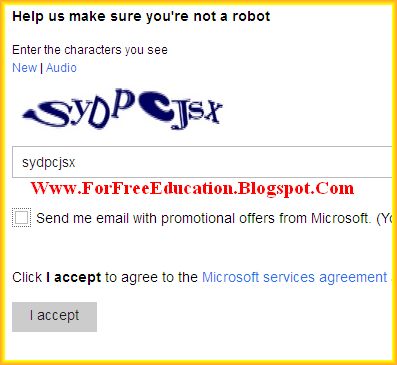
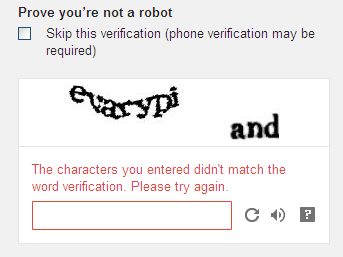
      7. Type the characters of text (verification code to prove you are not a robot).
      Steps to create new hotmail account
       8. Click on 'I Accept' button. If you have not provided two types of information as explained in step 5 above, you may be asked to provide it.
      Create Hotmail Account Free

      9. Here you may find an error regarding you did not enter the correct verification code. If this is the case, enter verification code again. Now click on 'I Accept' button again.
      10. Normally, you will see a message above your user name text box ( username@hotmail.com isn't available ). Type another user name. Mostly, you can combine your year of birth, your marks in an examination or your favorite number with your user name.
      Hotmail Email Services Free
      11. Congratulations! you have got a new Hotmail account. Click on Goto inbox link.

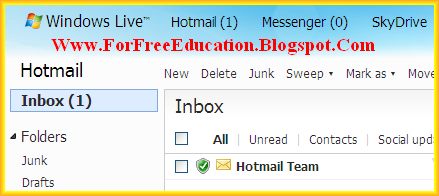
      12. Here is your Hotmail inbox.

      Got Hotmail Account

      Further Reading on E-Mail Accounts

      How to Change Your Hotmail Account's Password

      How To Write and Send an E-Mail Message Through Hotmail Account

      How To Create Your Free Yahoo E-Mail Account

      How To Create Your Free G-Mail Account

      How To Recover Your G-Mail Account Password


      Sunday, November 25, 2012

      How To Get Gmail Account Free

      1. Open your web browser, type www.gmail.com and press enter key.
      2. On the home page of gmail Click on Red Button Link of CREATE AN ACCOUNT on top right
          corner.


       4.After choosing a unique acceptable user name, now type a password. This password should be a combination of alphabets and numbers. You must remeber this password to access youe Googlemail ( gmail ) account. Type this password in the next text box labelled 'Confirm your password' again.


      5. Select your date of birth.
      6. Select your gender (Male, Female, Other).
      7. You may enter your mobile phone number.
      8. you may enter your current email address, if you have one. Google Inc. will send email alert in current email address, if any type of unusual activity seen in your gmail account. This will make your gmail account secure from hacking.

      9. Type the two pices of text (verfication code to prove you are not a robot).
      10. Select your location.
      11. Select the check box of Terms of Service.
      12. Click on Next Step button. Here you may find an error regarding you did not enter the correct verification code. If this is the case, you will enter password, confirm password and then enter verification code again. Now click on Next Step Button again.


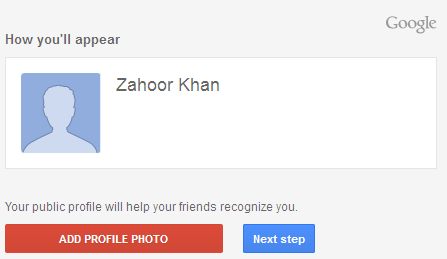
      13. Set a profile photo for your aaccount. You can select a picture from your computer or a picture by your web cam. Or you can skip this step by clickng on Next Step button.

      14. Congratulations! you have got a new gmail account. Click on Continue to Gmail button.

       
      15. Here is your Gmail inbox.

      Find Your Correct Age From Date of Birth

      First of all click on First two digits to type Month number from keyboard like any number from 1 to 12. . Now click on next two digits and t...