Topic: Explain Different Types of Programming Languages and Differences
What is a programming language?
Types of programming languages : Low level and high level programming languages with examples
Differences between low level and high level programming languages
Learn Programming now in easy steps from Perfect Programming Tutorial on EasyCodeBook.com
With the help of computer language, a programmer tells a computer what to do. Some popular computer programming languages are C++, Java, Visual Basic etc. These are examples of high level programming languages. Whereas machine language and assembly language are called low level programming language.
What is a programming language?
Types of programming languages : Low level and high level programming languages with examples
Differences between low level and high level programming languages
What is a Programming Language?
A set of words, symbols and codes used to write programs is called programming language. Different programming languages are available for writing different types of programs.Learn Programming now in easy steps from Perfect Programming Tutorial on EasyCodeBook.com
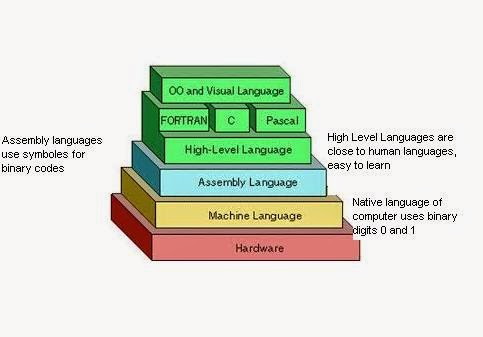 |
| Explain different types of programming languages |
With the help of computer language, a programmer tells a computer what to do. Some popular computer programming languages are C++, Java, Visual Basic etc. These are examples of high level programming languages. Whereas machine language and assembly language are called low level programming language.
Another Definition of a Programming Language
A programming language is a language that is designed to be used (read and written) by humans to create programs that can be executed by computers. In other words we can say that programming languages provides the way so that the users may interact with the computer to give it commands and instructions to perform certain tasks.Types of Programming Languages
There are two main types of computer programming languages.
• low-level languages
• high-level languages.
• low-level languages
• high-level languages.
Low Level Programming Languages
These languages are near to computer hardware and far from human languages. Computer can understand these languages easily.
Following are two low-level languages:
• Machine Language
• Assembly Language
Following are two low-level languages:
• Machine Language
• Assembly Language
Machine Language

A computer language in which instructions are written in binary form (0 and 1) is called machine language. It is the only language that is directly understood by the computer. Machine language is the native language of computer.
A computer language in which instructions
are written in binary form (0 and 1) is called machine language. It is
the only language that is directly understood by the computer.
Advantages of Machine Languages
a) Very fast program execution: Because the machine language is the native language of computer that computers directly understand and execute. There is no need of a translator program, because computer can already understand and execute the machine language instructions directly without the need of translation.
Disadvantages of Machine Languages:
a) Machine Language is difficult to understand
b) Machine Language is difficult to learn
c) Programs of Machine Language are difficult to modify
d) Machine Language requires deep knowledge of hardware
e) Programs of Machine Language are difficult to remove errors
f) Programs of Machine Language are Machine dependent
Machine language is also known as first generation language.
b) Machine Language is difficult to learn
c) Programs of Machine Language are difficult to modify
d) Machine Language requires deep knowledge of hardware
e) Programs of Machine Language are difficult to remove errors
f) Programs of Machine Language are Machine dependent
Machine language is also known as first generation language.
Assembly Language
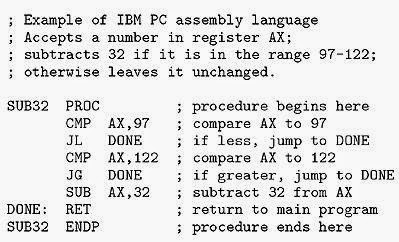 |
| Assembly Language Example Code |
Assembly language is a low-level language. In assembly language, symbols are used instead of binary code. These symbols are easy to remember. For example Add instruction is used to add two numbers.
Assembly language is also known as second generation language
Advantages of Assembly Langauge:
a) Assembly language programs are executed with fast speedb) Assembly language programming is easier to learn, understand and modify than machine language
Disadvantages:
a) Assembly language programs are machine dependent
b) Assembly language programming requires deep knowledge of hardware
High Level Programming Languages
A type of language that is close to human languages is called high level language. High-level languages are easy to understand. Instructions of these languages are written in English-like words e.g. Print, Display, Write etc.

Examples of High Level Programming Languages
- COBOL
- BASIC
- PASCAL
- C Programming Langage
- C++
- JAVA
- Visual Basic
Advantages of High Level Programming Languages:

a) High Level Programming Languages are Easy to learn and understand
b) Programs written in High Level Programming Languages are Easy to modify
c) It is Easy to remove errors in the Programs written in High Level Programming Languages
d) Programs written in High Level Programming Languages are Machine independent
e) High Level Programming Languages have Better documentation
b) Programs written in High Level Programming Languages are Easy to modify
c) It is Easy to remove errors in the Programs written in High Level Programming Languages
d) Programs written in High Level Programming Languages are Machine independent
e) High Level Programming Languages have Better documentation
Disadvantages of High Level Programming Languages
a) A disadvantage of High Level Programming Languages is slower program execution.
b) High Level Programming Languages provide programming facilities for performing Certain operations.
COBOL stands for Common Business Oriented Language. It was especially designed for business applications.
b) High Level Programming Languages provide programming facilities for performing Certain operations.
An Introduction To High Level Programming Languages
FORTRAN
FORTRAN stands for FORmula TRANslation. It is mainly used for writing applications related to science and engineering fields.BASIC
BASIC stands for Beginners All-purpose Symbolic Instruction Code. It was invented in late 1960's to teach programming skills to students.COBOL
COBOL stands for Common Business Oriented Language. It was especially designed for business applications.
C Language
C Language is one of the most popular programming language among students and beginners in the field of computer programming. C Language was designed by Dennis Ritchie at AT&T Bell Labs in 1972. Sometimes C Language is called a middle level language because it provides facilities to develop application software as well as system software. So C Language combines some important qualities of a high level language and a low level programming language.
Difference between Low-level and High-level Programming Language
High-level
Language
|
Low-level
Language
|
1. High-level languages are easy to learn
|
1.
Low-level languages are difficult to learn.
|
2.
near to human languages.
|
2, far from human languages.
|
3.
Programs in high-level languages are slow in execution.
|
3. Programs in low-level languages are
fast in execution.
|
4.
Programs in high-level languages are easy to modify.
|
4. Programs in
low-level languages are difficult to modify.
|
5.
Deep knowledge of hardware is
not required to write programs.
|
5. Deep knowledge of hardware is required
to write programs.
|