Thursday, November 27, 2014

Using Simple Formulas in Excel With Arithmetic Operators-2

What are Arithmetic Operators in Excel?


Arithmetic Operators are used to perform arithmetic operations like addition, subtraction, multiplication and division etc. There are following arithmetic operators in Microsoft Excel:
Using Arithmetic / Mathematical Operators in MS Excel Formulas

1.  + Operator


The + arithmetic operator is used to perform addition of numbers. It is used with in formulas along with Cell References normally. For example, to add the number 10 in A1 cell and the number 20 in B1 cell, we can write a formula =A1+B1 in cell C1. After pressing Enter key we will see the answer 30 in the cell C1.

Important Points To Write a Simple Formula in Excel


  1. Every formula in Microsoft Excel is started with an Equal sign ( = ).
  2. Arithmetic operators (+ for addition, - for subtraction, * for multiplication, / for division) are used.
  3. Percentage is calculated by % operator. ( =B2*10%       means 10% of the number in cell B2)
  4. Power function is performed by ^ operator. (3^2 will give 9) 
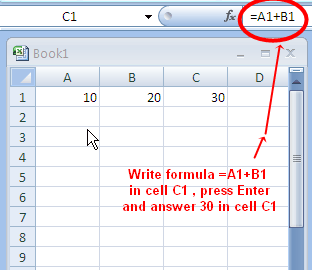
Use of addition arithmetic operator in Excel


2.  - Operator


The - arithmetic operator is used to perform subtraction of numbers. It is used with in formulas along with Cell References normally. For example, to subtract the number 100 in B1 cell from the number 50 in A1 cell, we can write a formula =B1-A1 in cell C1. After pressing Enter key we will see the answer 50 in the cell C1.
Use of subtraction arithmetic operator in Excel


3.  * Operator


The * arithmetic operator is used to perform multiplication of numbers. It is used with in formulas along with Cell References normally.

Use of multiplication arithmetic operator in Excel
For example, to multiply the number 10 in A1 cell with the number 20 in B1 cell, we can write a formula =A1*B1 in cell C1. After pressing Enter key we will see the answer 200 in the cell C1.


4.  / Operator


The / arithmetic operator is used to perform division of numbers and gives quotient of the division. It is used with in formulas along with Cell References normally.

Use of division arithmetic operator in Excel
 For example, to divide the number 10 in A1 cell by the number 5 in B1 cell, we can write a formula =A1/B1 in cell C1. After pressing Enter key we will see the answer 2 in the cell C1.


5. % Operator


The % arithmetic operator is used to calculate percentage. It is used with in formulas along with Cell References normally.

Use of Percentage arithmetic operator in Excel

For example, to calculate the 10 % of the number 1000 in A1 cell, we can write a formula =A1*10% in cell B1. We will read the formula =A1*10% as "10% of A1" means 10% of the number in cell A1. After pressing Enter key we will see the answer 100 in the cell B1.


6.  ^ Operator  (Exponent operator or Power operator)


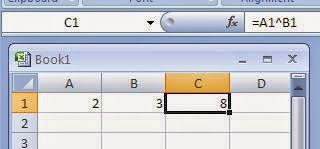
The ^ arithmetic operator is used to calculate a number n raised to the power p. For example 2^3 is equal to 8 ( 2 raised to the power 3).
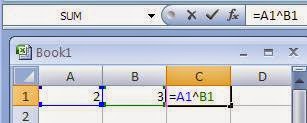
 Use of exponent - Power arithmetic operator in Excel
It is used with in formulas along with Cell References normally. For example, to calculate 2 raised to the power 3, type 2 in Cell A1 and 3 in cell B1. Now we can write a formula =A1^B1 in cell C1. After pressing Enter key we will see the answer 8 in the cell C1.

Order of Precedence of Arithmetic Operators in Excel


Order of precedence means the order in which operations will be performed when evaluating an expression in Microsoft Excel.

1. First of all the operation in parentheses ( ) is performed if any. If nested parentheses exist in expression, then the inner most parentheses will be evaluated first.
2. Secondly, Exponents will be evaluated if any.
3. In third step, multiplications and divisions will be calculated from left to right order.
4. In fourth step, additions and subtractions will be performed in Left to Right order.

Example: Evaluate the following expression according to the order of precedence in Excel
               =A1*B1-C1*(20+3)
Order of precedence of Arithmetic Operators in Microsoft Excel

Solution:  Let A1=10,   B1=5,    C1=2
            
               Step 1. First of all parentheses (20+3) is evaluated to 23
                             Now expression becomes  =A1*B1-C1*23
              Step 2. Now there is no exponents, so we check multiplication and division. There are
                          two multiplication operators. Since A1*B1 is on left so we evaluate it by putting values
                          10*5 the answer is 50. Therefore expression is reduced to =50-C1*23
              Step 3. Now we will evaluate multiplication C1*23. Putting values 2*23 and the answer is
                          46. So the expression becomes  50-46.
              Step 4. Now we will evaluate the last operation of subtraction 50-46 which gives the answer 4.


Monday, November 24, 2014

Microsoft Excel Formulas and Functions Fast and Easy Way -1

Introduction


Using Formulas and Functions in Microsoft Excel is really a tough job for new students. This is a series of tutorials to make the use of Formulas and Functions in worksheets, easy with various real life example worksheets.
مائیکروسافٹ ایکسل میں فارمولوں اور فنکشنزکا استعمال نئے طلبا کے لیے ہمیشہ سے ایک مسئلہ رہا ہے۔ میری کوشش ہے کہ فارمولا اور فنکشن کا ٹاپک پریکٹیکلی اور پکچرز کے ساتھ تفصیل سے بیان کروں۔

Let,s start.


What is Microsoft Excel?


Microsoft Excel is a popular application software used to manage data in the form of rows and columns and using Excel formulas and built-in Excel functions to perform various calculations on these data. Microsoft Excel is a part of Microsoft Office. We can make different types of worksheets in Excel, for example:
  1. Employee Pay Sheet
  2. Student Test Score Result Sheet with Grades Calculation
  3. Simple Electricity Bill Calculation Formula

What is an Excel Formula?


Excel Formula is a proper combination of operators (like +, -, /, *) and operands. A formula is used to perform different types of calculations and gives result. For example a formula to add numbers in cells A1 and A2 will be typed as =A1+A2.
Note: +, -, / and * are called arithmetic operators in Excel to calculate addition, subtraction, division and multiplication respectively.
Note: A1 and A2 are the Cell References of two cells in worksheet. A1 represents the cell in Row number 1 of Column A Whereas A2 represents the cell in Row number 2 of Column A.
Using Microsoft Excel Formulas and Functions Fast and Easy Way ComputerGap.com Understanding Cell References in Excel -
Using Microsoft Excel Formulas and Functions Fast and Easy Way ComputerGap.com

 What is a Cell Reference?


A Cell Reference is a special Reference Number made by combining Column name and Row Number. Actually a Cell Reference is used to access contents of a cell within a formula. For example, "A1" is an example of Cell Reference. "A" is taken from column name and "1" is taken from Row number. Therefore the intersection cell of column A and Row number 1 is called "A1". Look at the above picture to understand the concept of Cell Reference and how it is made.

How To Use a Cell Reference in a Formula?

Start Microsoft Excel with a new blank workbook. Type 100 in cell A1 and 200 in Cell B1. Now you want to add the two numbers typed in the cell A1 and B1 respectively.

How to enter Excel Formula for Adding two numbers by cell references
You must enter a formula using Cell References of both these cells. Every formula in Excel can be started with an equal sign  =. Now type "=" then type cell reference A1. Type + operator ( by pressing Shift and equal to key together ). Now type cell reference B1. Press Enter key. The result of addition will be displayed in cell C1 which is 300.
Result of addition formula using cell references
Result of addition formula using cell references -Using Microsoft Excel Formulas and Functions Fast and Easy Way ComputerGap.com


Friday, November 21, 2014

Advantages and Disadvantages of LAN Local Area Network

Topic: Advantages and Disadvantages of LAN Local Area Network

What is LAN ? - Local Area Network

LAN stands for Local Area Network. It normally connects the computers and other devices within one office, building or a group of nearby buildings.
Advantages Disadvantages of LAN - Local Area Network

Advantages of LAN or Local Area Network

1. Resource Sharing

Computer hardware resources like printers, modems, DVD-Rom drives and hard disks can be shared with the help of local area networks. This will reduce cost of hardware purchases. For example, a business organization using a Local Area Network for an office can use a single network printer for the employees of this office.

2. Software Applications Sharing

It is cheaper to use same software over network instead of purchasing separate licensed software for each client in a network. It will cost more to purchase a separate licensed software for each computer in a network.

3. Easy and Cheap Communication

Sponsored Links

Data and messages can easily be transferred over networked computers. It saves a lot of time and money.

4. Centralized Data

The data of all network users can be saved on hard disk of the server computer. This will help users to use any workstation in a network to access their data. Because data is not stored on workstations locally. But it is stored on a server computer. User will access their own data by logging into their accounts from any client computer in the network.

5. Data Security

Since, data is stored on server computer centrally, it will be easy to manage data at only one place and the data will be more secure too, because of more security for the server computer.
Sponsored Links

6. Internet Sharing

Local Area Network provides the facility to share a single internet connection among all the LAN users. In Net Cafes, single internet connection sharing system keeps the internet expenses cheaper. Because only one high speed internet connection is purchased by a net cafe from any ISP - Internet Service Provider company.

This single high speed internet connection is managed on the server computer of the Net Cafe and available for all network clients with the help of Internet Connection Sharing facilities of the operating system.

Advantages and Disadvantages of LAN Local Area Network

Disadvantages of LAN or Local Area Network

1. High Setup Cost

Although the LAN will save cost over time due to shared computer resources but the initial setup costs of installing Local Area Networks is high. This is because any organization that will setup a network, will have to purchase necessary hardware equipment for networking.

It may require a sophisticated server computer - a Mini Computer, Network LAN cards, Network Routers, HUBS / Switches, Networking Cables (for wired networks only) and connectors etc. Additionally a Network technician will be required for setting up a new network in an organization.

If an organization has a large network, it must hire a network administrator for smooth running of network and solving any problems. 

2. Privacy Violations

 The LAN administrator has the rights to check personal data files of each and every LAN user. Moreover he can check the internet history and computer use history of the LAN users.

3. Data Security Threat

Unauthorized users can access important data of an organization if centralized data repository is not secured properly by the LAN administrator. LAN Administer is responsible for the security of the whole data resource in an organization.

LAN administrator will implement a fully functional security policy for database safety.

4. LAN Maintenance Job

Sponsored Links

Local Area Network requires a LAN Administrator. Because, there are problems of software installations or hardware failures or cable disturbances in Local Area Network. A LAN Administrator is needed at this full time job.

A LAN Administrator may be with an M.C.S. or B.S.C.S. degree holder person optionally with a course / diploma in networking field or with relative experience in the field.

5. Covers Limited Area

Local Area Network covers a small area like one office, one building or a group of nearby buildings.


Find Your Correct Age From Date of Birth

First of all click on First two digits to type Month number from keyboard like any number from 1 to 12. . Now click on next two digits and t...