Saturday, June 1, 2019

Converting Decimal Number system to Binary, Octal and Hexa Decimal with Examples and Vice Versa


Topics covered with examples: Converting Decimal Number system to Binary, Octal and Hexa Decimal with Examples and Vice Versa


Number Systems in Computer Science and Conversion Method
Conversion of Decimal number system to other  number systems
Conversion of Decimal number system to binary number systems
Conversion of Decimal number system to octal number systems
Conversion of Decimal number system to hexadecimal number systems
Conversion of  non-decimal Number system to Other non-decimal number system

Conversion of other number systems to Decimal number system
Conversion of binary number systems to Decimal number system
Conversion of octal number systems to Decimal number system
Conversion of  hexadecimal number systems to Decimal number system

Q1. What is a Number System? What are different types of number system?

Number system
A number system is a set of digits, symbols and rules to express quantities in counting and calculations. Following are the most commonly used number systems:


Converting Decimal Number system to binary, octal and hex decimal with examples and vice versa
Number-systems-in-computer-science-easy-conversion-methods-with-pictures

Decimal Number System

It is most commonly used number system. It has 10 symbols{0,1,2,3,4,5,6,7,8,9}. It is also called base 10 number system. People normally use decimal number system to represent numbers.


Binary Number System

In binary number system there are only two symbols {0 and 1}. In a computer all data is represented by Binary number system. This is because computer’s electronic switches have only two states on and OFF. When a switch is ON it represents a 1 and when a switch is OFF, it represents a Zero.

Octal Number System

Octal number system consists of 8 digits{0,1,2,3,4,5,6,7}. Its base is 8. It is used as shorthand for long binary numbers. Each octal digit represents 3 binary digits.

Octal
Binary
0
000
1
001
2
010
3
011
4
100
5
101
6
110
7
111


Hexadecimal Number System

Hexadecimal number system is used to represent long binary numbers in an easy and short form. Its base is 16. It has sixteen symbols{0,1,2,3,4,5,6,7,8,9,A,B,C,D,E,F}. Each hexadecimal digit represents 4 binary digits.
Hexadecimal
Binary
Hexadecimal
Binary
0
0000
8
1000
1
0001
9
1001
2
0010
A
1010
3
0011
B
1011
4
0100
C
1100
5
0101
D
1101
6
0110
E
1110
7
0111
F
1111


Q2. Conversion of Decimal (Integer part) to other systems

                                  
a) 4510 = (?)2   
b) 11910 =(?)8
c) 19010 =(?)16
2
45
2
22-1
2
11-0
2
5  -1
2
2  -1
2
1  -0

0  -1 
8
119
8
14-7
8
1  -6

0  -1
16
190
16
11-14(E)

0  -11(B)


=> 4510 = (101101)2                          11910=(167)8                       19010=(BE)16                       


Q3. Conversion of Decimal system (Fraction part) to other systems

a) (.23)10   = (?)2
b) (.225)10 = (?)8
c) (.225)10 = (?)16


Fraction
Integer
.23 X 2 = 0.46
.46
0
.46 X 2 = 0.92
.92
0
.92 X 2 = 1.84
.84
1
.84 X 2 = 1.68
.68
1
.68 X 2 = 1.36
.36
1

=> (.23)10   = (.00111)2        [Similar method is used for decimal (fraction) to Octal (multiply by 8)and hexadecimal(multiply by 16)]

Q4. Conversion of Other systems (Integer part) to Decimal


a)  (101101)2    =( ? )10     b)    (167)8  = (?)10                 (BE)16 =(?)10                      
   
  a) (101101)2                                                   
     =1x25+0x24+1x23+1x22+0x21+1x20 
    = 32   + 0   +   8   +  4   + 0     +1
    = 45 
b) (167)8          
     =1x82+6x81+7x80 
    = 64   + 48   +  7
    = 119 
c) (BE)2            
     =Bx161+Ex160 
    =  11x161+14x160 
    =  176   + 14
    =   190 


Q5. Conversion of Other systems(Fraction part) to Decimal number system

a)  (.110)2    =( ? )10     b)    (.75)8  = (?)10                 (.13)16 =(?)10                       
   
  a) (.110)2                                                        
     =.{1x2-1+1x2-2+0x2-3} 
     =.{ 1/2   + 1/4   +   0}
     =.{  .5    +  .25  +    0}
     =.75
b) (.75)8            
     =.{7x8-1+5x8-2  }
     =.{ 7/8   + 5/64 }
     = .{.875 + .0781}
     = .9531 
c) (.13)16           
     =.{1x16-1+3x16-2  }
     =.{1/16   +3/256} 
    =  .{.0625   + .01171}
    =   .0742 


      Conversion of  non-decimal Number system to Other non-decimal number system


      For example to convert OCTAL into HEXADECIMAL, use the follwing steps:

1)            Convert octal into decimal

2)            Convert decimal into hexadecimal

Topics covered with examples: Number Systems in Computer Science and Conversion Method

Conversion of Decimal number system to other  number systems

Conversion of Decimal number system to binary number systems
Conversion of Decimal number system to octal number systems
Conversion of Decimal number system to hexadecimal number systems
Conversion of  non-decimal Number system to Other non-decimal number system

Conversion of other number systems to Decimal number system
Conversion of binary number systems to Decimal number system
Conversion of octal number systems to Decimal number system
Conversion of  hexadecimal number systems to Decimal number system


Sunday, September 16, 2018

C Plus Plus Programming Practical ACS Advanced Computer Studies

C Plus Plus Programming Practical Advanced Computer Studies

Here is a sample old question paper for guiding the students about the practical examination.


C++ Programming Practical will be of  20 marks.
Time allowed will be 1 hour 30 Minutes.
Section One contains only one compulsory question of Viva Vice ( Oral questioning)
Question No: 1 will be compulsory , VIVA VOCE of 5 marks.

In Section -II , You have to attempt any two questions(programs) out of  3 questions
Question No 2: C++ Program of 7.5 Marks
Question No 3: C++ Program of 7.5 Marks
Question No 4: C++ Program of 7.5 Marks
Sample Old Question Paper C++ Programming Practical for Advanced Computer Studies
C++ Programming Practical for Advanced Computer Studies

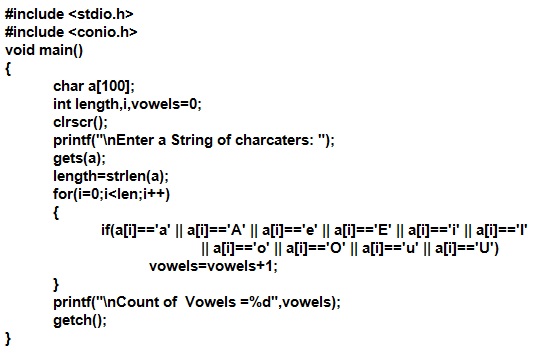
A sample solution to program 1:

Count number of vowels in a string  c program
Count number of vowels in a string  c program


Count number of vowels in a string output of c program

Sunday, June 24, 2018

Short Notes on Microsoft Word's Important Practicals Part - I

Topic: Short Notes on Microsoft Word's Important Practicals Part - I
Microsoft is one of the most popular word processing software by Microsoft. It is used to prepare different types of documents efficiently. Today we will learn some important practicals under Home Tab.

Important Practicals of Microsoft Word Part - I , Home Tab

1. Some Basic Tasks  - New, Save, Open


  1. Click on Start button.
  2. Select Microsoft Office Word 2007.
  3. A new blank document will be opened with Microsoft Word User Interface.
  4. Type your text in this MS Word document.
  5. Click on Office button.
  6. Select Save option.
  7. Type Filename in filename box.
  8. Select location like Desktop etc.
  9. Click on Save button or press Enter.


Procedure to Save a document in MS Word

To Open an Existing Word Document


  1. Press CTRL+O, or click on Office button, select from recent documents, or click on open option
  2. Select location / folder containing the required file / Word document.
  3. Double click on the document to open.


2. Copy Paste, Cut Paste


  1. Select text.
  2. Click on Home tab.
  3. Click on Copy command or Cut command.
  4. Place cursor where you wish to copied or cut text.
  5. Click on Paste command.


Short cut key for Copy is CTRL+C
Short cut key for Cut is CTRL+X
Short cut key for Paste is CTRL+V

3. Basics about Font

Simple Easy Procedures to Perform Basic Text Formatting in MS Word

Change Font Style


  1. Select text for which we need to change the font.
  2. Click on Home Tab.
  3. Click on down arrow with Font style box and select a font style.


To Change Font Size


  1. Select text.
  2. Click on Home Tab.
  3. Click on down arrow with Font Size box and select a font size.


To Change Font Color


  1. Select text.
  2. Click on Home Tab.
  3. Click on down arrow with Font Color tool and select a font color.


To Highlight Text


  1. Select text.
  2. Click on Home Tab.
  3. Click on down arrow Text Highlight Color tool and select a highlight color.


4. Text formatting Options Bold Italic Underline Strikethrough Subscript Superscript

Bold Text


  1. Select the text.
  2. Press CTRL+B or
  3. Click on Home Tab. Click on Bold option


Italic Text


  1. Select the text.
  2. Press CTRL+I or
  3. Click on Home Tab. Click on Italic option

Underline Text


  1. Select the text.
  2. Press CTRL+U or
  3. Click on Home Tab. Click on text Underline command

Strikethrough Text


  1. Select the text.
  2. Click on Home Tab. Click on Srikethroug command

Subscript


  1. Select the text.
  2. Press CTRL+ =       or
  3. Click on Home Tab. Click on Subscript command X2

Superscript

  1. Select the text.
  2. Press CTRL+ Shift + =       or
  3. Click on Home Tab. Click on Superscript command X2

 5. Text Alignment

  1. Select text.
  2. Click on Home tab.
  3. Click on command of Align Text Left, Align Text Right, Center and Justified

Procedure for text Alignment in Microsoft Word

6. Preparing Lists of Items - Bulleted Lists and Numbered Lists

Microsoft Word provides two main types of lists: 
Bulleted Lists that use different symbols called bullets in beginning of list items.
Numbered Lists that use different numbers / alphabets / roman numbers in beginning of list items.

How To Prepare Bulleted List


  1. Click on Home tab.
  2. Click on Bulltes command from font group.
  3. Select a bullet style.
  4. Type first list Item. Press Enter.
  5. Type next item and press Enter and so on.
  6. If you wish to stop list, Press Enter once again.

Create Bulleted List in Microsoft Word


Example of Bullets List in Microsoft Word


How To Prepare Numbered List


  1. Click on Home tab.
  2. Click on Numbered command from font group.
  3. Select a numbering style.
  4. Type first list Item. Press Enter.
  5. Type next item and press Enter and so on.
  6. If you wish to stop list, Press Enter once again.
Create Numbered List in Microsoft Word

7. Changing Line Spacing

Line spacing options also exist on Home Tab's Paragraph group. Normally we use line spacing of 1 or 1.15. Line spacing is the space between two lines of a paragraph. Sometimes, when we have small amount of text with respect to a large page size, we may increase line spacing to 2, so that page will look like in a good format showing more text on spreading on more page space. 

How to Change Line Spacing

For example, consider the page in following picture with 1.15 line spacing option. 
How To Change Line Spacing Options in MS Word - Important Word Practicals Part-1
How To Change Line Spacing Options in MS Word

If we set the line spacing to 2, the same page will look like as follows:


  1. Place Cursor in the paragraph.
  2. Click on Home tab
  3. Click on drop down arrow of Line Spacing box in paragraph group.
  4. Select the required line spacing option, for example 2.


Changing Line spacing and set line spacing option to 2


Saturday, June 23, 2018

Paper Codes and Titles of B.Sc. Double Computer Islamia University IUB Bahawalpur

Download Paper Codes and Titles of B.Sc. Double Computer Islamia University IUB Bahawalpur

Note: View the image below for ACTUAL details of Computer A Course and Computer B Course Papers with respective Paper codes and their Titles.

Picture of Syllabus paper codes of  B.Sc. Double Computer ( Computer A Course + Computer B Course ) with course titles.

Download Paper Codes and Titles of B.Sc. Double Computer Islamia University IUB Bahawalpur

Download Paper Codes and Titles of B.Sc. Double Computer Islamia University IUB Bahawalpur


Computer A Course:
Total Marks = 200
Details of Paper Codes and Titles of Computer A Course
Paper Code Title Marks
Computer A Course Paper-I  Structured Programming With ANSI C 50
Computer A Course Paper-II Computer Fundamentals and Operating
System
50
Computer A Course Paper-III Systems Analysis and Design 50
Computer A Course Paper-IV Accounting Fundamentals and
Business Applications
50

Total Marks 200

Computer B Course:
Total Marks = 200
 Details of Paper Codes and Titles of Computer B Course
Paper Code Title Marks
Computer B Course Paper-I  Visual Programming50
Computer B Course Paper-II Database Management Systems 50
Computer B Course Paper-III Data Structure and Algorithms 50
Computer B Course Paper-IV Practical and Viva Voce 50

Total Marks 200


Find Your Correct Age From Date of Birth

First of all click on First two digits to type Month number from keyboard like any number from 1 to 12. . Now click on next two digits and t...