Saturday, January 7, 2012

Different Types of Text Formatting Tags in HTML

There are many Text formatting tags available in HTML. You can format your text as:
  • Bold Text
  • Italic Text
  • Underline Text
  • Superscript Text
  • Subscript Text


    Let us discuss these formatting tags one by one with example html source code and the output in web browser.

    1. Bold Text

    <b> tag is used for formatting the text as bold text. You place the text within <b> and </b> tags to make it bold.

    2. Italic Text

    <i> tag is used for formatting the text as italic text. You place the text within <i> and </i> tags to make it italic.

    3. Underline Text


    <u> tag is used for formatting the text as underline text. You place the text within <u> and </u> tags to make it underline.

    4. Superscript Text


    <sup> tag is used for formatting the text as superscript text. You place the text within <sup> and </sup> tags to make it superscript.

    5. Subscript Text


    <sub> tag is used for formatting the text as bold text. You place the text within <sub> and </sub> tags to make it subscript.


    HTML Formatting Tags Source Code Examples

    HTML Formatting Tags Output in web browser
    <b>Bold Text</b>
    <i>Italic Text</i>
    <u>Underline Text</u>
    Superscript Example X Squared= X<sup>2</sup>
    Subscript Example X base 2= X<sub>2</sub>

    Bold Text
    Italic Text
    Underline Text
    Superscript Example X Squared= X2
    Superscript Example X base 2= X2

    Sunday, January 1, 2012

    Types Of Headings In HTML

    HTML Hedings

    Headings in HTML are used to display Titles, Sub-Titles of Sub-Sub-Titles for your web page text. There are six types of headings in HTML. H1 is the largest heading and H6 is the smallest heading. <H1> is opening tag whereas </H1> is the closing tag for the largest heading. The text between <h1> and </h1> will be displayed as the main Title in your web page. Following are the six tags used for six types of headings in HTML.

    1. <H1> ... </H1>
    2. <H2> ... </H2>
    3. <H3> ... </H3>
    4. <H4> ... </H4>
    5. <H5> ... </H5>
    6. <H6> ... </H6>


    The H1 heading is used for main titles. Actually H1 heading will show the text in largest font size. H2 headings is used for Sub-Titles. H2 displays text in smaller font size than H1, H3 displays text of font size smaller than H1 and H2, and so on. H1 is for largest heading in a text page and H6 is for smallest heading.  

    Importance Of Headings in SEO

    Headings are important not only, for specifying Titles and Sub titles in a web page, but they play an important role to enhance Search Engine Optimization of your web page in major Search engines like Google and Yahoo. Search engines use your headings, especially H1 and H2 headings, to index the structure and content of your web pages. Therefore, proper use of headings may improve your web page's search engine optimization.

    Example HTML Code and Output

    HTML Code for Six HeadingsOutput in Web browser
    <h1>First Heading</h1>
    <h2>Second Heading</h2>
    <h3>Third Heading</h3>
    <h4>Fourth Heading</h4>
    <h5>Fifth Heading</h5>
    <h6>Sixth Heading</h6>


    First Heading

    Second Heading

    Third Heading

    Fourth Heading

    Fifth Heading
    Sixth Heading


    Wednesday, December 21, 2011

    Create Your First Web Page in HTML

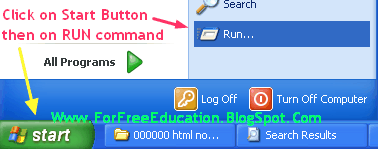
    Today, we will discuss the topic Create Your First  Web Page in HTML. As we know a website is a set interlinked related web pages. Therefore, to design and develop a website, we need to know creating web pages. HTML stands for Hyper Text Markup Language. HTML is the basic language used to create web pages.
    Let's start our tutorial with suitable pictures Create Your First  Web Page in HTML.
    Now we will create a simple web page to display some text like "Welcome to Web Page Development!" and with a title "My First Web Page".


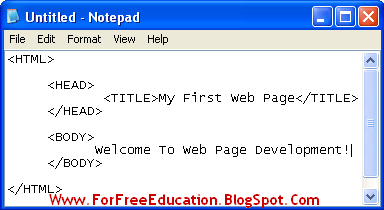
    1. Type HTML Code in Note Pad

    Open Note pad and type the following HTML code.
    <HTML>
    <HEAD>
    <TITLE>My First Web Page</TITLE>      
    </HEAD>
    <BODY>
    Welcome To Web Page Development!
    </BODY>
    </HTML>

    Picture: Create Your First  Web Page in HTML in 5 minutes


    Create Your First  Web Page in HTML Easily - Instructions with Pictures


    How to Create Your First  Web Page in HTML


    Picture: Create Your First  Web Page in HTML Easily

    How to Create Your First  Web Page in HTML Easy Tutorial


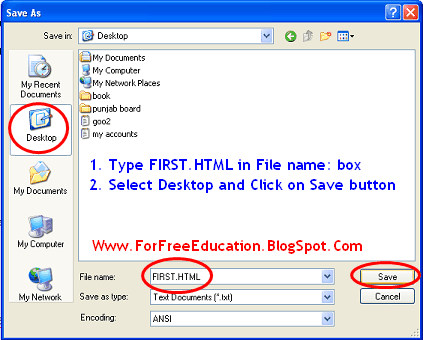
    2. Save HTML Document with HTML extension

    Save this file as "FIRST.HTML". Click on File menu, click on Save, Type "FIRST.HTML" in file name box, select Desktop as a location to save, click on Save Button.

    Create Your First  Web Page in HTML

    Picture: Create Your First  Web Page in HTML Made Easy

    Easy Tutorial Create Your First  Web Page in HTML

    3. View Your Web Page in Web Browser

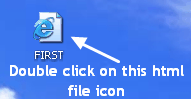
    You will see that the file will be saved with a blue "e" Internet Explorer icon. Double click on the file and view the resulting web page in internet explorer window. You can see the pictures given to learn web page creation easily:

    Create Your First  Web Page in HTML in 5 minutes


    Picture: Create Your First  Web Page in HTML ( Final Product = The Output )

    Made Easy Create Your First  Web Page in HTML in 5 minutes

    Basic Structure of HTML Document

    Basic Structure of HTML Document 

    The basic structure of an HTML document is given below:
    <HTML>
            <HEAD>
             
           </HEAD>


           <BODY>

            
          </BODY>

    </HTML>
    The above format shows that an HTML document starts
    with <HTML> tag and ends with </HTML> tag. It is also clear
    that an HTML document consists of two main sections:


    1.  Head Section

    Head section is used to specify a title of the web
    page, normally. There are some other uses of Head section too, like linking
    external style sheets and Java script code, etc. Head section starts with the <HEAD>
    tag
    and ends with the </HEAD> tag. <TITLE> tag is used to
    display a title of the web page on title bar of the web browser.


    basic structure of html web page document

    1. Body Section

    Body section contains all the text and tags. It is used to specify the actual
    content of the web page. Body section starts with <BODY> tag and
    ends with </BODY> tag.

    How To Create a Web Page In HTML

    If you want to create a web page using HTML - Hyper Text Markup Language, you will need the following two software:
    1. Text Editor: It is used to write HTML tags according to the requirements of the web page. Windows Notepad is a suitable candidate for this purpose. You have to save the HTML document with html or htm extension. For example, type the name of your web page document as "first.html".


    1. Web Browser: Web Browser is a software used to view web pages. Examples of a web browser are Internet Explorer, Mozilla Firefox and Google Chrome. Microsoft Windows users can view and test their web pages, in Internet Explorer. 


    I will discuss the Basic Structure of an HTML Document, in my next post.

    Introduction To HTML

    HTML stands for Hypertext Markup Language. Hypertext refers to the text with Links. These links may point to sections of the same web page or any other web page within or outside the website.

    HTML Definition

    HTML is a language used to create and format web pages. HTML is used to define the structure and format of a web page. HTML will place and format the contents like text, pictures, audio or video data in your web pages. Moreover,you can use Links to connect the related web pages in the form of a website.


     Who Invented HTML?

    HTML was developed by Tim Berners Lee in 1989.

    TAGS and Elements

    HTML uses commands called TAGS to create and format different elements
    and contents of a web page. HTML tags are enclosed within angle brackets <>. For example <b> tag is used to format some text as bold text.
    Normally, tags work in pairs as shown in the example below.

    <b> This is bold text. </b>
    The output of the above HTML command or tag will be as show next in blue:
    This is bold text.

    The <b> tag is called Opening Tag or start tag, whereas </b>
    tag is called Closing Tag or end tag. most of the tags use both opening
    and closing tags. A few tags like <br> tag (used for line break)
    and <hr> tag (used for horizontal rule, that is, a horizontal line)
    is used as single tags. They do not need closing tags. Such tags are also called
    Empty Tags.
    Every HTML Tag is related to some HTML element. For example, <TABLE>
    tag
    is used to create a table HTML element. Each HTML documents consists of
    HTML elements.

    Attributes

    An attribute is an additional information to implement a tag. It gives some
    extra information to enhance the format of the element related to that tag. For
    example, <TABLE> tag is used to create a table in a web page. If we use a
    <TABLE> tag without a BORDER attribute, table element will have no
    border. If we use BORDER="1" in opening <TABLE> tag,
    table will be created with a border.  BORDER is the attribute to
    specify border width for a table and 1 is the value assigned to BORDER
    attribute, as shown below:


    <TABLE BORDER="1">          
                                               
    .

    .

    .

    </TABLE>                                  

    Note: Attribute is used in Opening Tag always like BORDER="1".
    Note: No attribute in Closing Tag.

    Sunday, December 4, 2011

    Advantages and Disadvantages of Mesh Topology

    Topic: Advantages and Disadvantages of Mesh Topology

    Mesh Topology

    In a mesh topology, every device on the network is physically connected to every other device on the network. Therefore, data can be sent on several possible paths from source computer to destination computer. Mesh topology is more reliable with better performance. Mesh Network Topology is mostly used in wide area networks where reliability is important.

    Advantages and disadvantages of Mesh network Topology


    Advantages of Mesh Network Topology

    1. Since, there are many links to transfer data, Mesh topology gets rid of the traffic problem. Data may be transferred through different links.
    2. If one link becomes unusable, it does not disturb the whole system. Other links can be used for communication.
    3. Since each node has physical connection with other nodes, therefore, one node can transfer data to many nodes at the same time.

    Disadvantages of Mesh Network Topology

    1. It is very expensive due to implementation of multiple links for each node.
    Sponsored Links
    2. It is difficult to install and reconfigure.
    3. Adding or removing a computer is difficult.


    Read  More on Networking
    and Networks
    1 Explain
    Advantages Of Networks
    2 Types
    Of Computer Networks
    3 Differences
    between LAN and WAN
    4 Types
    Of Network Topology
    5 Bus
    Topology :Advantages and Disadvantages
    6 Advantages
    and Disadvantages of Star Topology
    7 Advantages
    and Disadvantages of Ring Network Topology
    8 Advantages
    and Disadvantages of Tree Topology
    9 Advantages
    and Disadvantages of Mesh Topology

    Topic: Advantages and Disadvantages of Mesh Topology

    Find Your Correct Age From Date of Birth

    First of all click on First two digits to type Month number from keyboard like any number from 1 to 12. . Now click on next two digits and t...