Sunday, March 17, 2013

Forgot your Gmail Password - Easy To Follow Password Recovery Instructions

Dear Reader, You came here to Find a way to recover your Forgotten GMail Password. You are most welcome! Here I will give you a pictorial presentation with text illustrations to recover your Google Mail Password easily. Before we proceed, It will be better to know that their are four ways to reset your GMail password by starting GMail Password Recovery Process.
Forgot your Gmail Password - Easy To Follow Password Recovery Instructions
Explain GMail Password Recovery Process The Easy Way
  • 1. When you created the GMail account, you provided your phone number to Google Inc. Now Google can send you a Verification Code on this phone number to verify your account.
  • 2. Google Inc. can verify your account by an automated call on your phone number.
  • 3. Google Inc. can verify your account by RECOVERY EMAIL or alternate or secondry email address you already provided.
  • 4. Google Inc. can verify your account by asking Questions about your account. 
Now, here is the step by step password recovery procedure:
How to recover Gmail Account Password 
Recovering Gmail Password easily

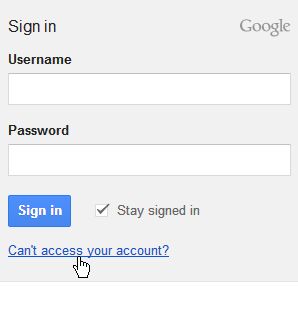
  • 1. Open gmail.com in your browser window.
  •  2. Click on 'Can.t access your account?'
  • 3. In next screen, you can select one option for example, 'I don't know my password' . Type your email address and click on Continue button.
  • 4. Enter your phone number. You can see the hint for your phone number.
  • 5. You can select verification code by SMS or by an automated phone call by Google Inc.
Procedure of recovering gmail account password

  •  6. When you click on the continue button, you will get the Google verification code on your phone by sms. Enter this 6 digit verification code as shown in the picture.
Password recovery for gmail account

  • 7. Now you can reset your password by providing a new password and then confirming it.
Password recovery for gmail account
  •  8. Congratulations you have reset your GMail password successfully.
  •  
  • 9.  Similarly you can recover password by Recovery Email method, or answering questions about your Gmail account.

Tuesday, November 27, 2012

How To Change Password of Hotmail Account

Sometimes, you may need to change the password of your Hotmail email account. One reason of changing password may be that your friend has seen the password and he may hack your Hotmail accont.

1. Type www.hotmail.com and press enter key.

2. Type your username and password and click sign in link.

3. Go to inbox.

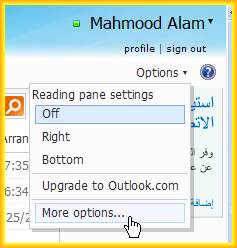
4. Click on the Options link.

5. Click on more options link.

6. Click on 'Account dtails(password, aliases, time zone)' link, under 'Managing your account' heading.


7. Here you will be asked your password again. Type your current password and sign in.

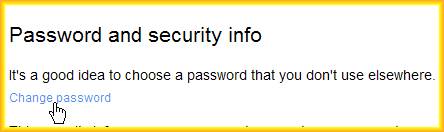
8. Click on Change password link.
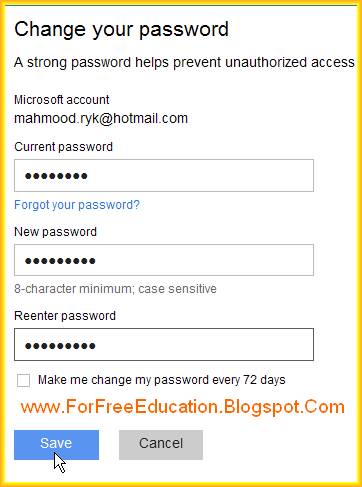
9. Type your current password in first box, new password in second box, Retype youe new password in third box.

10. Click on save button.

11. You will be informed by the message that your password has been changed.

How To Send New Email on Hotmail

1. Type www.hotmail.com and press enter key.

2. Type your username and password and click sign in link.

3. Goto inbox.


4. Click on the New link.

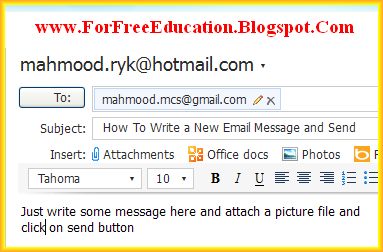
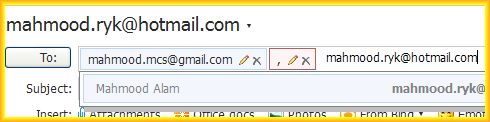
5. In 'TO' text box, type email addresses separated by commas of your friends to send email.

6. Type any subject related to your email purpose, in SUBJECT box.

7. Type your email message in detail in main editor window. if you want to add more addresses in To box then type another email address after a comma.


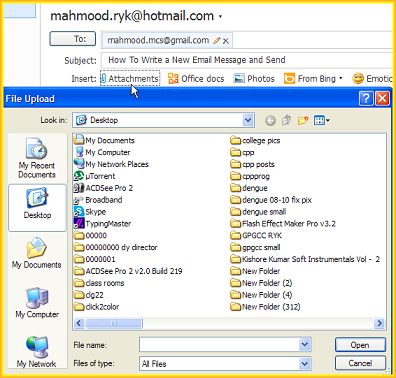
8. If you want to send a file, for example, your picture or a word document to your friends, clcik on
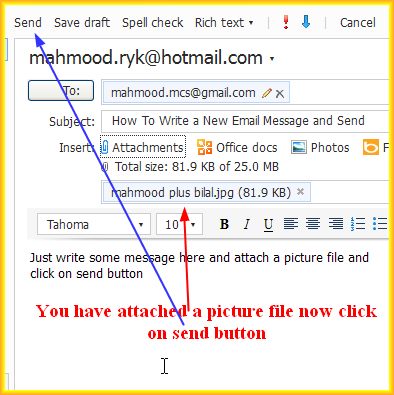
attachemts link. File Upload dialog box will open, select the file and click on open. Wait until the file may be uploaded and its name will be seen under attachements link.

9. Click on the 'Send' link.

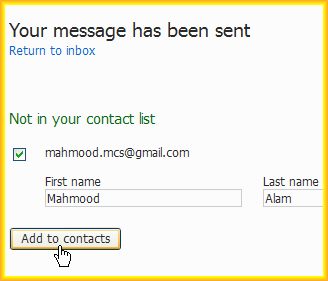
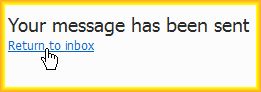
10. 'Your message has been sent' message will appear on screen.

11. There may be an option to add new contacts in your contacts list.

12. Type First and Last name of the contact and click on 'Add To contacts' button.

13. Click on Go to inbox link.

14. If you has sent this email to your own email address, it will be shown in your inbox, too. If you do nop
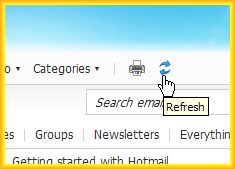
see it there, click on the refresh icon. Now you can see your email message shown in inbox.

Monday, November 26, 2012

Explain How To Create Hotmail Email Account

Step by Step Procedure To Create Free Hotmail E-Mail Account

How to Create New Hotmail Account Free
1. Open your web browser, type www.hotmail.com and press enter key.
2. On the home page of Hotmail Click Link of Sign Up Now on bottom.
Get a new Hotmail Email Account Free
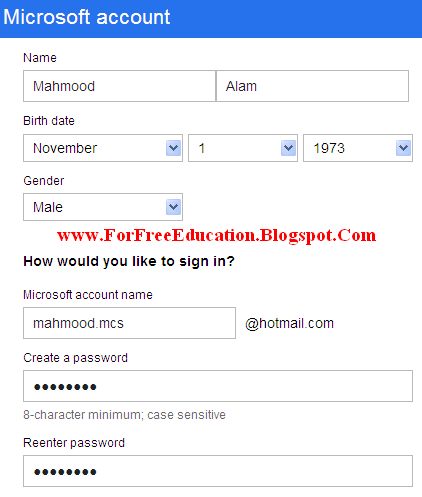
3. Now, you will see a form requiring some information about you. Fill in the form for Hotmail Email Account carefully. First of all, you need to enter your First Name and Last Name. Secondly, select your date of birth.
4. Select your gender.
5. Now,you must choose a unique user name. Type a user name, for example, mahmood.mcs. Click left button of mouse in the next text box named Create a password.
4. Now type a password. This password should be at least 8 characters long and a combination of alphabets and numbers is better and secure. You must remember this password to access your Hotmail email account. Type this password in the next text box labelled 'Renter password' again.
Create New Hotmail Account
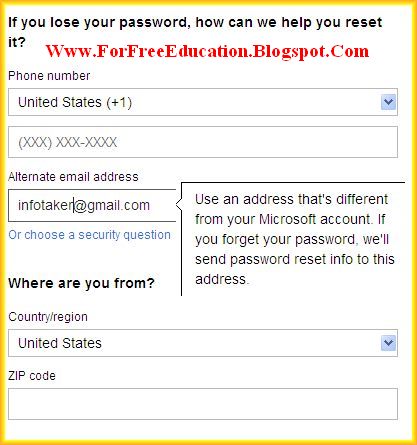
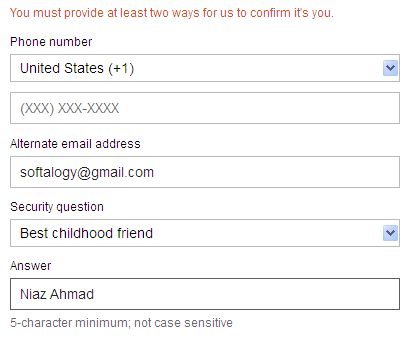
5. In this step, you will enter the necessary information for your identification and password reset, if you forget your password. This information will be of three types. You must give two type of information at least.
    i) Your Phone Number
Here you will enter your phone number, so that if you forget your password then you will get password reset information on this phone number.
    ii) Your Alternate email address
    iii) Your security question and the answer you provide.
New Hotmail Accounts  
6. Select your country and zip code or postal code as applicable.
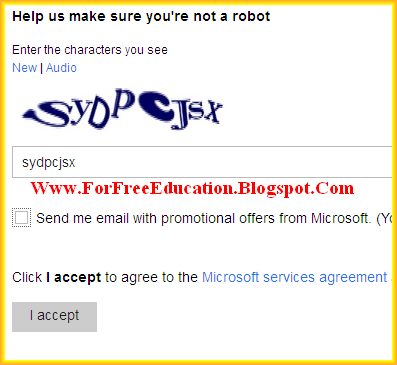
7. Type the characters of text (verification code to prove you are not a robot).
Steps to create new hotmail account
 8. Click on 'I Accept' button. If you have not provided two types of information as explained in step 5 above, you may be asked to provide it.
Create Hotmail Account Free

9. Here you may find an error regarding you did not enter the correct verification code. If this is the case, enter verification code again. Now click on 'I Accept' button again.
10. Normally, you will see a message above your user name text box ( username@hotmail.com isn't available ). Type another user name. Mostly, you can combine your year of birth, your marks in an examination or your favorite number with your user name.
Hotmail Email Services Free
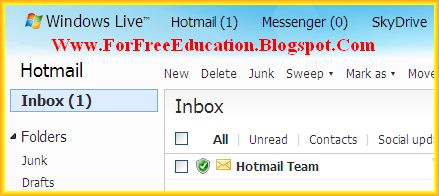
11. Congratulations! you have got a new Hotmail account. Click on Goto inbox link.

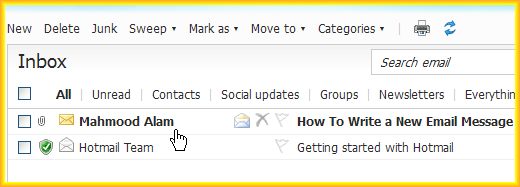
12. Here is your Hotmail inbox.

Got Hotmail Account

Further Reading on E-Mail Accounts

How to Change Your Hotmail Account's Password

How To Write and Send an E-Mail Message Through Hotmail Account

How To Create Your Free Yahoo E-Mail Account

How To Create Your Free G-Mail Account

How To Recover Your G-Mail Account Password


Sunday, November 25, 2012

How To Get Gmail Account Free

1. Open your web browser, type www.gmail.com and press enter key.
2. On the home page of gmail Click on Red Button Link of CREATE AN ACCOUNT on top right
    corner.


 4.After choosing a unique acceptable user name, now type a password. This password should be a combination of alphabets and numbers. You must remeber this password to access youe Googlemail ( gmail ) account. Type this password in the next text box labelled 'Confirm your password' again.


5. Select your date of birth.
6. Select your gender (Male, Female, Other).
7. You may enter your mobile phone number.
8. you may enter your current email address, if you have one. Google Inc. will send email alert in current email address, if any type of unusual activity seen in your gmail account. This will make your gmail account secure from hacking.
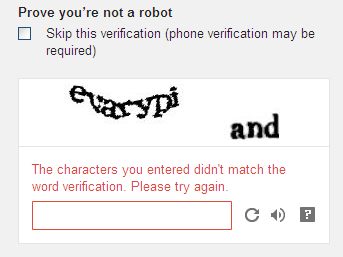
9. Type the two pices of text (verfication code to prove you are not a robot).
10. Select your location.
11. Select the check box of Terms of Service.
12. Click on Next Step button. Here you may find an error regarding you did not enter the correct verification code. If this is the case, you will enter password, confirm password and then enter verification code again. Now click on Next Step Button again.


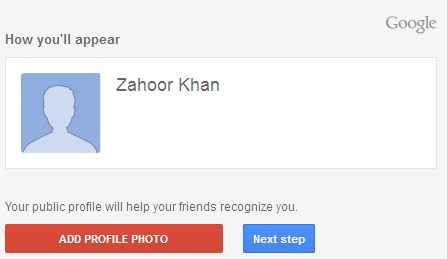
13. Set a profile photo for your aaccount. You can select a picture from your computer or a picture by your web cam. Or you can skip this step by clickng on Next Step button.

14. Congratulations! you have got a new gmail account. Click on Continue to Gmail button.
 
15. Here is your Gmail inbox.

Sunday, June 10, 2012

How To Create Yahoo E-Mail Account


Today, we are discussing the procedure for Creating a New Yahoo Free E-Mail Account.
Yahoo.Com is one of the most popular and oldest Free Email Provider world wide. Yahoo provides many free features to its email account holders including Yahoo Email account.
How To Create Free Yahoo Email Account in Seconds

Sponsored Links


We can easily create a new yahoo email account by performing the following steps in the given order. Actually first of all you have to be connected with a fast internet connection. The second step is obviously to open a web browser. you can use any web browser but I prefer Google Chrome or Mozilla Firefox because they provide the best smooth less browsing experience. 

So, here are the

Main steps to create a new Yahoo Free E-mail Account:

  1. Open web browser, For example Google Chrome, Mozilla Firefox or Internet Explorer. Always use latest updated versions of web browsers for your computers security from hackers and malware. I recommend using Google Chrome or Mozilla Firefox web browser.
  2. Type www.yahoo.com in address bar and press Enter. The home page of yahoo.com will be displayed in main window of your browser.
  3. Click on ‘Sign Up’ link. Otherwise, you can click on Mail option and then click on Sign up link.
  4. An empty form will appear requiring information about you and the eamil account you wish to create. Fill in the form carefully. Enter required information like First Name, Last Name,  Gender, Date of Birth, Country and Language.
  5. Type your required Yahoo ID (for your E-mail address). It must be unique. Yahoo will display a list of suggestions. You can select any one of the provided email id options or can write your own, but remember, it must be unique which has not been taken by any other yahoo mail user already. Otherwise Yahoo will deny to create a user id for you and display a message that this email id has already been taken.
  6. Type your password and retype it. Password should be strong enough so that no one can guess easily and try to open your email account. You should mix letters and numbers. But note that a password must be easy to remember for you. Otherwise, in case of forgetting your password, you will not abe able to open your account. So, you will go through the password reset options under question like link "Forgot your password?" or Trouble signing in? as shown the figure below:  
    How to create a free yahoo email account fast
    How to create a free yahoo email account fast
  7. Type Your alternate e-mail address (Optional). If you have another email account you can write it here so that in case of forgetting password, you will talk with yahoo email account management team via this alternate yahoo email account.
  8. Chose Secret Question 1 and type its answer.
  9. Chose Secret Question 2 and type its answer.
  10. Type the character code shown in picture.
  11. Click on ‘Create My Account’ button. Congratulations! for creating a new yahoo email account which is totally free and you can connect with your friends, colleagues or relatives with the help of this free yahoo email account ID. 


Suggested Further Reading


Find Your Correct Age From Date of Birth

First of all click on First two digits to type Month number from keyboard like any number from 1 to 12. . Now click on next two digits and t...