Thursday, February 9, 2012

Explain Different Types of User Interface

What is a User Interface? Explain its types.

User Interface


User Interface is the set of items on screen to interact with the computer. A user interacts and uses computer with the help of these items. For example, Windows Desktop is an example of user interface. Similarly Dos Prompt is also an example of user interface.

Types of User Interface

There are two main types of user interface:
1) Graphical user interface (GUI)
2) Command line user interface (CLI)

1) Graphical User Interface

Graphical user interface or GUI provides different graphical items like windows, menus, tool bars and icons etc. A mouse or any other pointing device is used to work with these items. Commonly we select different commands from menu or toolbar with the help of mouse. We need not to type commands. We can double click on a file or folder to open it. We can double click on a shortcut to open a program. GUI is very easy to interact the computer.
All versions of Windows, Macintosh, OS/2 and some versions of Unix and Linux provide GUI.

Explain types of user interface GUI and CLI


Advantages of GUI - Graphical User Interface:

a) Easy to learn: It is very easy to learn even for beginners or ediots :D
b) Easy to use: GUI based systems are very easy to use becaus of icons, shortcuts, toolbars and menues etc.
c) Use of mouse: Since, we use mouse to select any command from a menue or toolbar, so we feel easier to work on computer.
d) Less typing: There is a very less need of typing commands in a GUI based software. Mostly, you are to point and select commands with mouse.
e) No need to memorize syntax of commands: Syntax is the way of writing that is typing a command so that computer can understand and execute it. Since, in GUI we use mouse button clicks, we need not to memorize command syntax.

2) Command line user interface (CLI)


Types of User Interface - Command Line Interface CLI

A command-line interface provides a prompt / place where user types commands for execution. CLI interface is difficult to learn and use. We have to memorize commands. Operating system will not execute the command if there is a small error in typing the command. Dos and some versions of UNIX and Linux provide command-line interface. CLI is character based or textual interface.

Friday, February 3, 2012

Explain Different Types Of Operating Systems with Examples

Topic: Explain Different Types Of Operating Systems with Examples

Q. Explain different types of operating system

What is an Operating system or OS

The operating system is the most important program that runs on a computer. Every general-purpose computer must have an operating system to run other programs and applications. The Operating system or OS provides the base on which other programs and applications are installed and executed . Operating systems perform basic tasks in computer systems, like:

Basic Functions of Operating System

  • Providing the user interface
  • Receiving the input from the keyboard,
  • Sending  the output to the monitor screen, 
  • Keeping track of files and folders on the disk,
  • and controlling the functions of peripheral devices such as printers, etc.
Different Types of Operating Systems With Examples in Detail

Different types of operating system with examples

Following are different types of operating system with examples:


Explain different types of operating systems

1) Single User Operating system

An operating system that allows a single person to use or access a computer at a time is called single user operating system.

Examples of Sinlge User Operating System


For example, DOS and Windows 95 are single user operating systems.

2) Multiuser Operating System

An operating system that allows more than one user to access a computer at a time is called multi user operating system.

Examples of Sinlge Multiuser Operating System

For example Unix, Linux, Windows 2000 server

What are different types of operating systems with examples

3) Single Tasking operating system

An operating system that allows the user to perform only one task at a time is called single tasking operating system.

Examples of Sinlge Tasking Operating System


For example, DOS is a single tasking operating system. In DOS, you can type and execute only one instruction at a time. you cannot use another command untill the first command is completed.

What are examples of different types of OS

4) Multi Tasking operating system


An operating system that allows the user to perform more than one tasks at a time is called single tasking operating system.

Examples of Multi Tasking Operating System


For example Windows, Unix, Linux are multi tasking operating systems. In MS Windows we can perform many tasks at the same time. For example, we can type some letter in MS Word while listening music in an audio player software at the same time.


5) Stand Alone operating system

An operating system that works on a desktop or notebook computer is called standalone operating system,

Examples of Stand Alone operating system


for example DOS, Windows 2000 professional etc

6) Client operating system

A stand-alone operating system that works with a network operating system is called client operating system. e.g. Windows 2000 professional, Windows NT workstation

7) Network operating system


An operating system that supports network is called network operating system. It normally works on a server. Some examples of network operating system are Windows NT Server, Windows 2000 Server, UNIX, and Linux etc.

8) Real Time operating system


A real time operating system is a very fast operating system. It responds to a certain input extremely quickly.

Examples of Real Time operating system

Real time operating systems are needed to run medical diagnostic devices, machinery and industrial systems.

Some common examples of real time operating systems include:

  1.  Air Traffic Control Systems, 
  2. Command Control Systems and
  3. Networked Multimedia Systems.
  4. Real time OS for Medical diagnostic devices
  5. Real Time operating systems to run ATM machines
  6. Medical devices, machinery, life support system use Real time operating systems

9) Time sharing operating system


A time sharing operating system is an operating system in which many users can execute their tasks nearly simultaneously. Operating system allocates a very small time period to each task. All tasks share CPU time. CPU executes each task for a very small time period turn by turn. CPU is so fast that all users think that CPU is doing their task.

Operating system uses CPU scheduling and multiprogramming to provide each user with a
small portion of a time. Computer systems that were designed primarily as batch systems
have been modified to time-sharing systems.
Advantages of Timesharing operating systems are following
• Provide advantage of quick response.
• Avoids duplication of software.


Thursday, January 26, 2012

Different Functions Of Operating Systems

Topic: Different Functions Of Operating Systems

What is an Operating System?

Operating systems are an important type of system software. They provide a lot of facilities to the users.
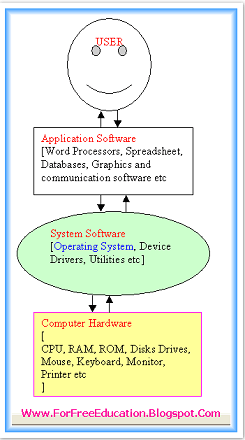
An operating system can be defined as software that acts as an interface between the end user and the hardware. Computer users can use computer systems that have an OS or operating system installed. For example, Microsoft Windows is a popular PC operating system.

What is the Importance of Operating System in Computer?

Each computer must have at least one operating system to run other programs. for example, if there is no operating system in your computer, you will not be able to use the computer. When you install an OS like Microsoft Windows on your computer, it displays its GUI that is Windows desktop on startup. Now you can use your computer with the help of graphical user interface elements like icons, menus, shortcuts on your computer screen.

Similarly if you wish to install application programs like games, Microsoft Word, Firefox or Chrome web browser  etc. you will install them with the help of  the Operating  system.
You can etcfolders, files etcIf you want to work on your computer, you must install an operating system on your computer.

When you start your computer, the operating system loads into the computer memory and appears as a user interface. The user can now work on a computer using this user interface provided by the operating system.

Functions of operating systems with examples
Different functions of operating systems


Following are the 14 main functions performed by Operating System:
Each computer must have at least one operating system to run other programs.

Explain Different Functions of Operating System

1. Process Management

CPU can perform one task at one time. If there are many tasks, operating system decides which task should get the CPU first. Operating system also maintains a queue of jobs for processing one by one.

2. Main Memory Management

Operating system manages memory (RAM)for many running programs. It allocates memory area to different programs. It de-allocates the memory area when a program is terminated. It also manages efficient use of RAM during processing.

3. Secondary Storage Management

Operating system manages secondary storage. It manages the stored files and folders on disk in a proper way.
You can create and save files and folders, edit files, copy files, move files from one location to another within one computer or from computer to computer, and delete files and folders etc, with the help oif operating system.

4. I/O System management

It manages Input/output operations. It controls I/O devices like mouse, keyboard, monitor and printer etc.

5. File Management

It manages files, for example:
  • creation of files
  • deletion of files
  • copying of files.
  • editing files
  • moving of files etc.

6. Protection System

There are many processes of different users in memory at a time. So operating system provides protection so that no process can interfere with another process activity. Operating system makes sure that each and every process performs within its own boundaries.

7. Networking

Operating system provides access to shared resources by networking system. Users can share files and hardware resources like printer.

8. Command Interpreter system

Operating system provides command interpreter for reading and executing user commands. For example, Microsoft Windows XP provides Command Prompt to enter and execute commands.

9. Booting

Operating system starts the computer. It checks the computer and makes it ready to work.

10. Loading and Execution

Operating system provides the facility to load programs in memory easily and then execute it.

11. Data Security

Operating system protects the data stored on the computer from illegal use, modification or deletion.

12 Device Controlling

Operating system controls all devices attached to computer with the help of device drivers. Device driver is a software that permits a computer system to communicate with a device. e.g., device driver software for a modem comes with it on CD. We have to install device driver before using a device.

13. Printing Controlling

Operating System also manages and controls printing function. If a user issues two or more print commands at a time, it manages print queue for printing each document one by one in a proper sequence.

14. Providing User Interface

Operating system provides User interface to interact with the computer. User Interface may be Graphical user interface (GUI) or Command line interface. For example, Microsoft Windows XP provides an easy to use graphical user interface called GUI. Whereas DOS provides a Command Line Interface called CLI.

Topic: Different Functions Of Operating Systems


Monday, January 23, 2012

Explain Different Components of Operating System

Topic: Explain Different Components of Operating System

Q. What is an Operating System? Explain Components of an Operating system.

Operating System

An operating system is a set of programs that manages all computer components and operations. An operating system works as an interface between the user and the computer hardware.

Examples of Operating Systems

Some popular operating systems are DOS, windows, Unix, Linux, and OS/2.
Without Operating System, a computer cannot do anything. Users interact with the computer through operating system. Operating system acts as an interface between a user and computer hardware.

Explain Different components of operating system


Components of an Operating system

An Operating system has many components to manage all resources of a computer system as following:

1.    Process Management

CPU can perform one task at one time. If there are many tasks, operating system decides which task should get the CPU first.

2.     Main Memory Management

Operating system manages memory (RAM)for many running programs. It allocates memory area to different programs. It deallocates the memory area when a program is terminated.

3.    Secondary Storage Management

Operating system manages secondary storage. It manages the stored files and folders on disk in a proper way so that minimum space is consumed and faster access of files when required.

4.    I/O System management

It manages Input/output operations. It controls Input/Output devices like mouse, keyboard, monitor and printer etc.

5.     File Management

    File management component performs all activities related to files. It manages files for example creation of file or deletion of files.

6.         Protection System

          There are many processes of different users in memory at a time. So operating system provides protection component so that no process can interfere with another process's activity.   

7.     Networking

Modern Operating system provides networking services. Operating system provides access to shared resources by networking system.

8.     Command Interpreter system

Operating system provides command interpreter component. Command line interpreter is used for reading and executing user commands. The user will type commands on command line interface which will be executed.

Attributes of TR Tag in HTML Tables

Use Of TR Tag


<TR> tag is used to create rows in HTML Tables. <TR> is the opening tag to start a row and </TR> is a closing tag to end a row. You can place pairs of <td>...</td> tags to create data cells in a row within the <tr>...</tr> tags.
for example to create a row with only one cell containing data "Apples", we will use the following html code.and Mangoes respectively:
<tr>
<td>Apples</td>
</tr>
Apples
If you want to create a row with two cells containing data "Apples" and "Mangoes" respectively, we will use the following html code.
<tr>
<td>Apples</td>
<td>Mangoes</td>
</tr>
Apples Mangoes
You canm also create a header row with the help of <TR> tag and <TH> tags. For example, to create a header row with two header cells with contents "Employee" and "Salary", we will use the following HTML coding:
<tr>
<th>Employee</th>
<th>Salary</th>
</tr>
Employee Salary

Attributes of TR Tag

1. align


It is used to define the horizontal alignment of text in cells, in a particular row. The possible values are:
left: The text is aligned to the left.
center: The text is centered.
right: The text is aligned to the right.
justify: The text is justified to both, left and right, margins.
Example HTML code
<table border="1">
<tr align="right">
<td width="100">Salary</td>
<td width="100">10000</td>
</tr>
</table>
Salary 10000

2. valign

It defines vertical alignment of the text with in cells in a row. Possible values are:
    top: The text is aligned to the top.
    middle: The text is vertically centered. This is the default value.
    bottom: The text is aligned to the botom.
  

3. bgcolor

It defines the background color that will be used as background of all the cells inside the row.
For example, if we use <tr bgcolor="green">, all cells in this row will have a green background as shown below.
<table border="1">
<tr bgcolor="green">
<td>Apple</td>
<td>Banana</td>
<td>mango</td>
</tr>
</table>
Apple Banana mango

Sunday, January 22, 2012

Attributes of Table Tag


Table Tag Attributes

  1. Border: It is used to specify a border and its thickness for a table.
  2. Cellspacing: It is used to specify the distance between adjacent cells in a table.
  3. Cellpadding: it is used to specify the distance between a cell and cell contents in a table.
  4. Width: It is used to specify width of a table in pixels or as percentage to screen width.
  5. Align: It is used to specify the horizontal alignment of a table. Possible horizontal alignment values are "left", "right" or "center".
  6. Valign: It is used to set the vertical alignment of a table as "top", "bottom" or "middle".
  7. Bgcolor: It sets the background color of a table. You can specify color names or hex values for the color.

    Example of table with border=1, width=200 and align=center attributes

    HTML Coding:

    <table border="1" width="200" align="center">
    <tr>
    <th>Book</th><th>Price($)</th>
    </tr>
    <tr>
    <td>Visual Basic</td><td>75</td>
    </tr>
    <tr>
    <td>C++</td><td>45</td>
    </tr>
    </table>

    BookPrice($)
    Visual Basic75
    C++45

    Example of table with border=5, cellpadding="10" and cellspacing="10"

    <table border="5"  cellpadding="10" cellspacing="10">
    <tr>
    <th>Book</th><th>Price($)</th>
    </tr>
    <tr>
    <td>Visual Basic</td><td>75</td>
    </tr>
    <tr>
    <td>C++</td><td>45</td>
    </tr>
    </table>
    BookPrice($)
    Visual Basic75
    C++45

     Example table with border="5" width="300" bgcolor="yellow"

    <table border="5" width="300" bgcolor="yellow">
    <tr>
    <th>Book</th><th>Price($)</th>
    </tr>
    <tr>
    <td>Visual Basic</td><td>75</td>
    </tr>
    <tr>
    <td>C++</td><td>45</td>
    </tr>
    </table>

    BookPrice($)
    Visual Basic75
    C++45

    Friday, January 20, 2012

    Difference between Cellspacing and Cellpadding


    Cellspacing and Cellpadding are two important attributes of  <Table> tag. As you know <Table> tag is used to create and display tables in HTML documents.

    What is CELLSPACING?

    Cellspacing is an important attribute of <Table> tag in HTML. Cellspacing specifies the spacing between adjacent cells in a table. Consider the following example of an HTML table with cellspacing attribute set to 50.

    Example of Cellspacing use

    <TABLE border="1" cellspacing="30">
    <th>Name</th><th>Marks</th>
    <tr><td>Sajid Mahmood</td><td>666</td>
    <tr><td>Majid Karim</td><td>555</td>
    </table>

    NameMarks
    Sajid Mahmood666
    Majid Karim555

    Example of Cellspacing=15

    <TABLE border="1" cellspacing="15">
    <th>Name</th><th>Marks</th>
    <tr><td>Sajid Mahmood</td><td>666</td>
    <tr><td>Majid Karim</td><td>555</td>
    </table>

    NameMarks
    Sajid Mahmood666
    Majid Karim555

    Example of Cellspacing=0

    <TABLE border="1" cellspacing="0">
    <th>Name</th><th>Marks</th>
    <tr><td>Sajid Mahmood</td><td>666</td>
    <tr><td>Majid Karim</td><td>555</td>
    </table>

    NameMarks
    Sajid Mahmood666
    Majid Karim555

    What is CellPadding?

    Cellpadding is used to specify the distance between a cell contents and its boundaries. For example, consider the following table with cellpadding=0

    Example of Cellpadding=0

    <TABLE border="1" cellpadding="0">
    <th>Name</th><th>Marks</th>
    <tr><td>Sajid Mahmood</td><td>666</td>
    <tr><td>Majid Karim</td><td>555</td>
    </table>

    NameMarks
    Sajid Mahmood666
    Majid Karim555

    Example of Cellpadding=20

    <TABLE border="1" cellpadding="20">
    <th>Name</th><th>Marks</th>
    <tr><td>Sajid Mahmood</td><td>666</td>
    <tr><td>Majid Karim</td><td>555</td>
    </table>

    NameMarks
    Sajid Mahmood666
    Majid Karim555

    Example of Cellpadding=50

    <TABLE border="1" cellpadding="50">
    <th>Name</th><th>Marks</th>
    <tr><td>Sajid Mahmood</td><td>666</td>
    <tr><td>Majid Karim</td><td>555</td>
    </table>

    NameMarks
    Sajid Mahmood666
    Majid Karim555

    Find Your Correct Age From Date of Birth

    First of all click on First two digits to type Month number from keyboard like any number from 1 to 12. . Now click on next two digits and t...